
Animations
Animation is the heart of Falcon Slider. Every layer can animate in (entrance), animate out (exit), reveal its text character by character, and loop gently while it rests. All of it plays on a timeline you control, live on the canvas and identically on the frontend.
Editor and frontend always match
Whatever you set — animation, reveal, duration, delay, idle loop — plays the same on the editor canvas and the live frontend, by default. No toggle needed.
Entrance & exit animations
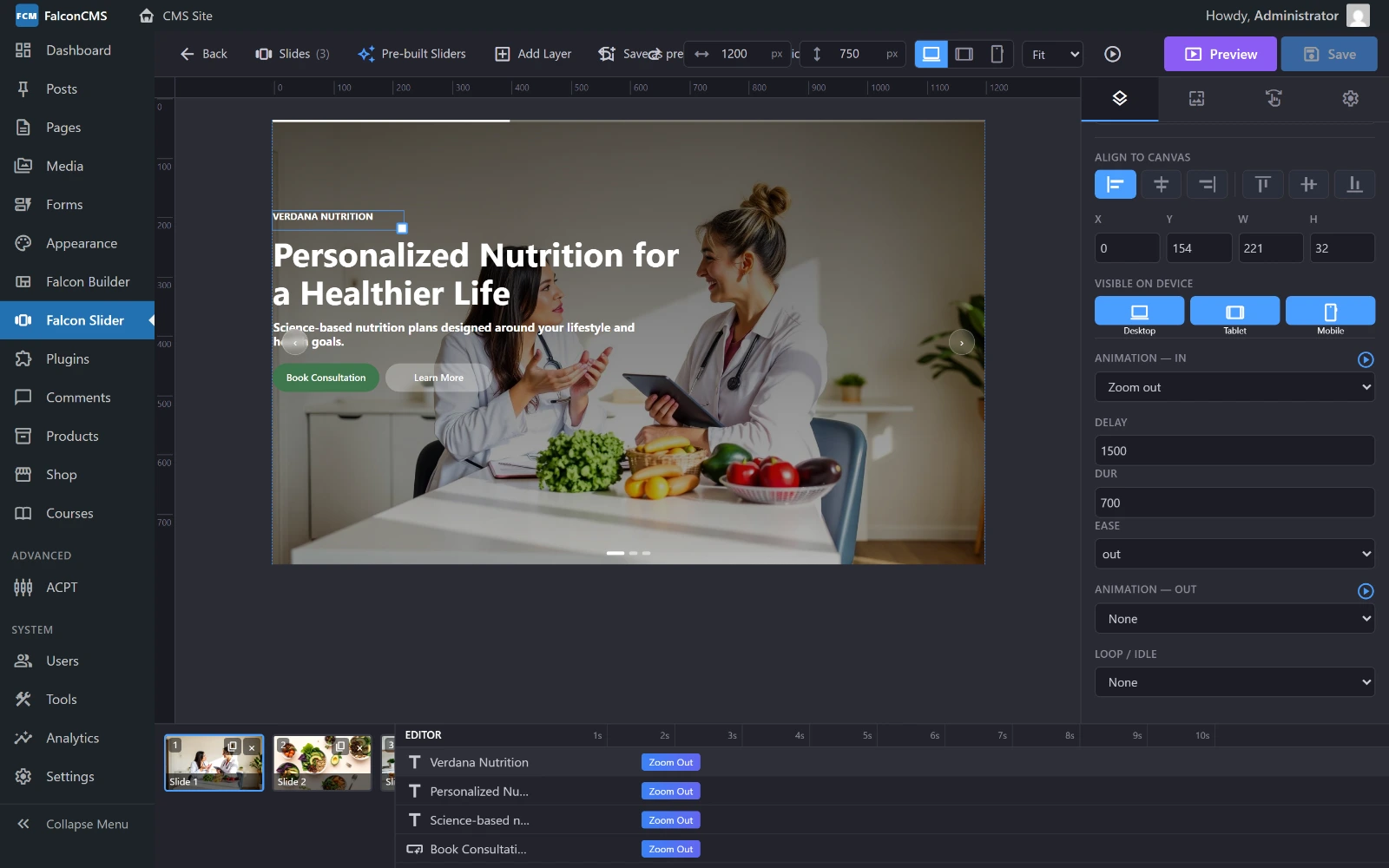
Scroll a layer's panel to its animation block: the In preset with its delay, duration and easing, then Out, then Loop / Idle. The timeline below shows the same timings as bars.
In the Layers tab, each layer has an In (entrance) and Out (exit) animation. Pick a preset:
| Preset | Motion |
|---|---|
none | No motion (appears instantly) |
fade | Fade in |
from-bottom / from-top | Slide up / down into place |
from-left / from-right | Slide in horizontally |
from-bottom-left / from-top-right | Slide in diagonally |
zoom-in / zoom-out | Scale up / down into place |
zoom-blur | Scale in with a blur |
blur-in | Sharpen from blur |
rotate-in | Rotate into place |
flip-x / flip-y | 3D flip on the X / Y axis |
skew-in | Skew into place |
Timing
Each animation has three timing controls:
- Delay — how long to wait (ms) after the slide shows before this layer animates. Stagger layers by giving each a larger delay.
- Duration — how long the animation runs (ms).
- Easing — the acceleration curve:
ease,ease-out,ease-in,ease-in-out, or a springycubic-bezier(.34,1.56,.64,1)overshoot.
Click the ▶ replay icon next to any animation to preview it on the canvas.
Text reveal
Text layers can reveal their content instead of a plain entrance. In the Layers tab set Reveal to:
| Reveal | Effect |
|---|---|
none | Normal (uses the entrance preset) |
typewriter | Types the text out character by character with a blinking cursor |
chars | Each character fades/rises in, one after another |
words | Each word fades/rises in, one after another |
Reveals honour the layer's delay — the reveal waits for the delay, then plays. Combine a reveal with a delay to sequence headlines dramatically.
Idle loops
An idle loop keeps a layer gently in motion after it has entered — great for drawing the eye to a badge or button. Choose a loop:
| Loop | Motion |
|---|---|
none | Static once entered |
float | Slow up-and-down drift |
bob | Gentle bounce |
pulse | Soft scale pulsing |
sway | Side-to-side sway |
spin | Continuous rotation |
Loops run continuously and combine with parallax and hover effects.
Building an animated sequence
A typical hero headline sequence:
0 ms     Background fades in, Ken Burns begins
200 ms   Eyebrow text  → from-left,  reveal: words
600 ms   Headline      → from-bottom, reveal: chars
1200 ms  Sub-headline  → fade
1600 ms  CTA button    → zoom-in,   idle loop: pulse
Set each layer's delay to the times above, pick the presets, and press Preview to watch the whole slide play with autoplay and every animation — exactly as visitors will see it.
Accessibility (reduced motion)
By default, animations always play. If you'd rather respect a visitor's operating-system "reduce motion" setting for accessibility, enable Respect reduced-motion in the slider Settings tab. When on, visitors who ask their OS to reduce motion get a gentle fade instead of movement, idle loops are paused, and Ken Burns / parallax are disabled — while everyone else sees the full animation.
Next
- Navigation & Managing — autoplay, arrows, thumbnails, revisions and full-screen preview
- Layers — the layers you're animating