
Navigation & Managing
This page covers how visitors move between slides — arrows, bullets, progress, thumbnails and autoplay — plus the productivity tools that keep your work safe: version history, full-screen preview, templates and import/export.
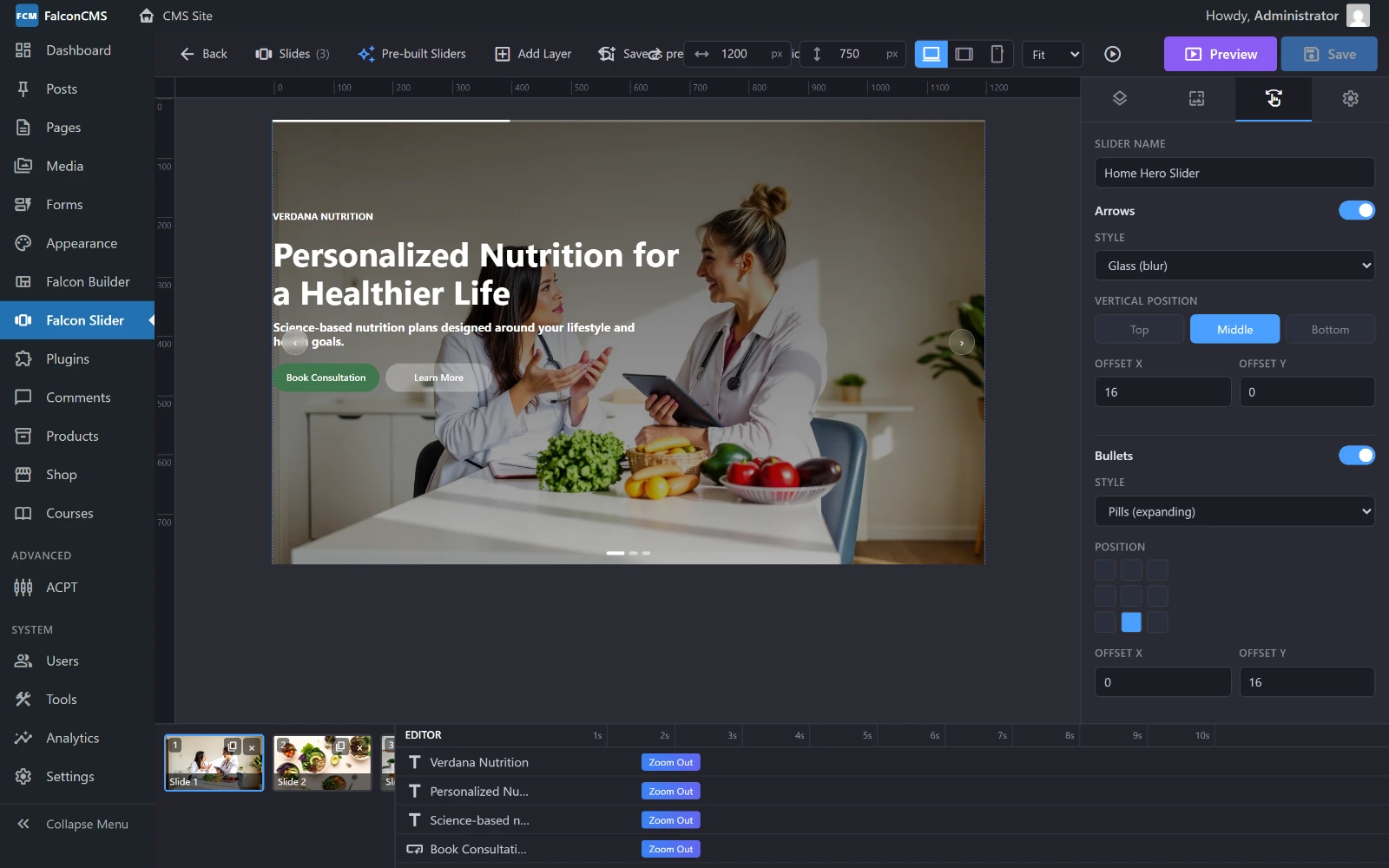
Arrows and bullets each have their own style, position and offsets — set on the Navigation tab and previewed live on the canvas.
Autoplay
In the slider Settings tab:
| Setting | What it does |
|---|---|
| Autoplay | Advance slides automatically |
| Autoplay delay | Time each slide stays (ms) |
| Loop | Return to the first slide after the last |
| Pause on hover | Stop autoplay while the pointer is over the slider |
Navigation controls
Arrows
Previous / next arrows. Choose a style, a position (e.g. middle), and fine-tune the x / y offset. Toggle on or off.
Bullets
Dot navigation for jumping to any slide. Choose a style, a position (e.g. bottom-centre) and x / y offset.
Progress bar
An optional bar that fills as each slide plays. Set its colour, height and position (top or bottom).
Thumbnails
Show a strip of slide thumbnails for direct navigation — great for showcases where visitors pick what to view.
Spinner / preloader
Optionally show a spinner that covers the stage until the first slide's background is ready, so visitors never see a half-loaded slide.
Sizing
The slider Settings tab offers three sizing modes:
| Mode | Behaviour |
|---|---|
| Auto | Fixed design width, centred on the page (e.g. 1200 × 600) |
| Full-width | Spans the full document width; keeps the design height |
| Full-screen | Fills the entire viewport (100vh) |
Full-width and full-screen break out of the theme's container automatically and are sized to the document width (never causing a horizontal scrollbar). The design width / height and the tablet / mobile breakpoints are all set here too.
Version history
Every time you Save, Falcon Slider automatically stores a snapshot of the design. The most recent 20 versions are kept per slider.
To restore one:
- Click Revisions in the toolbar
- Pick a version from the list (each shows when it was saved and how many slides it had)
- Click Restore — that version loads into the editor
Restore is safe
Restoring loads the old version into the editor as an undoable step — nothing becomes permanent until you Save. Review the restored design first, then keep it or undo.
Full-screen live preview
Click Preview in the toolbar to open a full-screen preview of your current, unsaved design. Autoplay runs and every animation, reveal and idle loop plays exactly as it will on the live site.
- It renders your in-editor state — no need to save first.
- Reload re-renders with your latest changes.
- Exit (or Esc) closes it.
- Nothing is written to the database — it's a pure preview.
Templates & the pre-built gallery
Pre-built sliders
Click Pre-built Sliders to open a gallery of ready-made designs. Applying one drops its slides and settings straight into your slider — a fast starting point.
Save as pre-built
Made a design worth reusing? Click Save as pre-built to store the current slider (settings + slides) as a reusable template in your library, under a category you name. It then appears in the Pre-built gallery for any future slider.
Import & export
From the Falcon Slider admin list:
- Export — download a single slider as a portable
.falconslider.jsonfile. - Bulk export — select several sliders and download them as one bundle.
- Import — upload a single export or a bundle to recreate the slider(s) on this site.
- Duplicate — clone a whole slider (settings + all slides) as a new draft in one click.
This makes it easy to move sliders between sites or keep off-site backups.
Permissions
Access to Falcon Slider is governed by the manage_sliders permission and a valid Pro license. Grant the permission to a role under Roles & Permissions to let other users build sliders.
See also
- Overview — what Falcon Slider is and how to embed it
- Slides & Backgrounds
- Layers
- Animations