
Layers
Layers are the building blocks placed on top of a slide's background — headlines, buttons, images, timers and more. Each layer is freely positioned, sized, styled, made responsive per device, and animated on its own schedule.
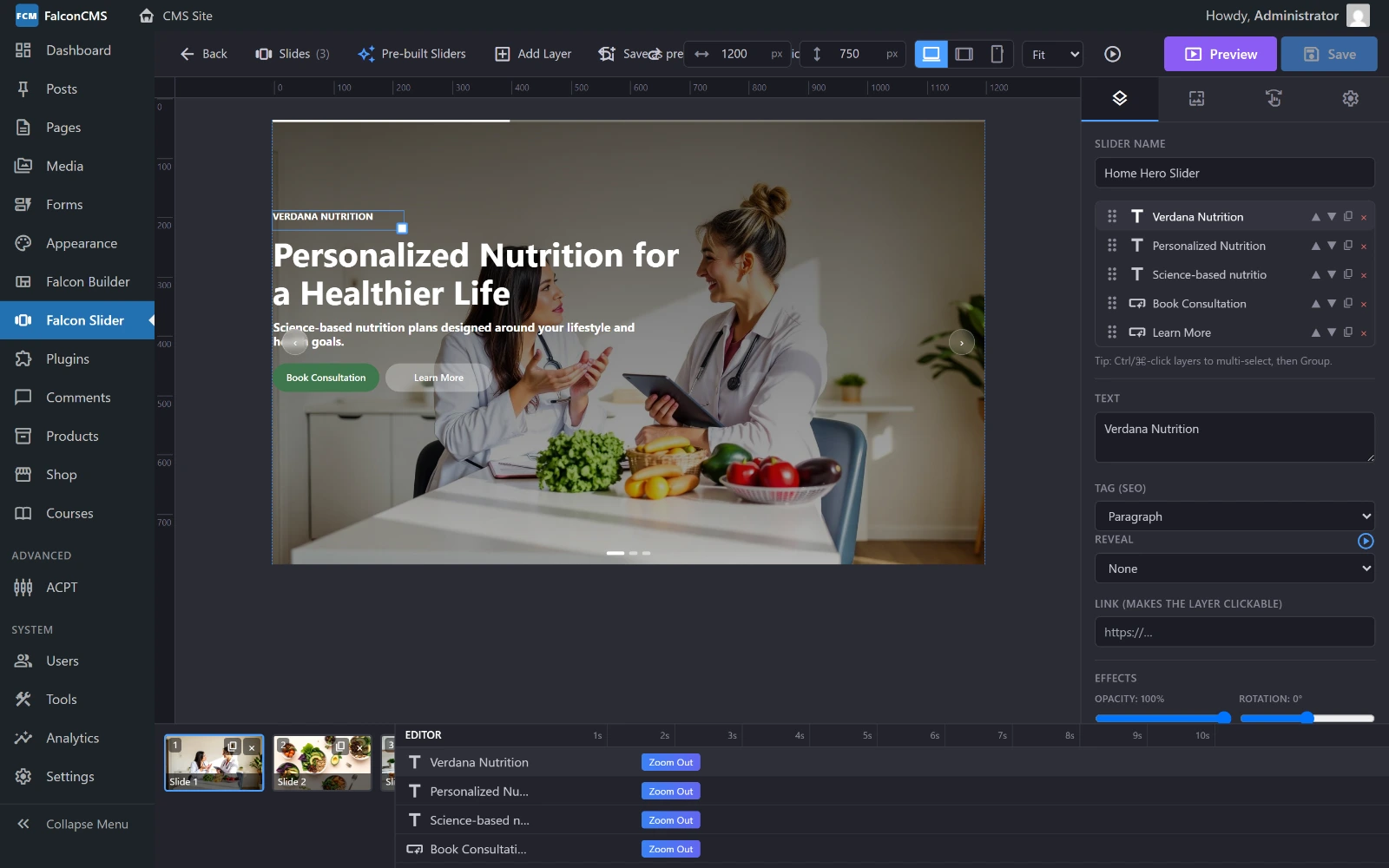
Selecting a layer — on the canvas, in the list, or on its timeline bar — opens its properties: text and SEO tag, reveal, link, and the effect sliders.
Adding a layer
Click + Add Layer in the toolbar and choose a type:
| Layer | Use it for |
|---|---|
| Text | Headlines, paragraphs, captions — with real h1–h6 / p tags for SEO |
| Image | Logos, product shots, decorations |
| Button | Call-to-action links with hover states |
| Shape | Rectangles, circles and polygons — solid fills or full-width overlays |
| Icon | Any of the bundled Material Symbols icons |
| Video | Inline video (self-hosted, YouTube or Vimeo) with optional controls |
| Audio | An inline audio player |
| Countdown | A live-ticking days/hours/mins/secs timer to a target date |
| HTML / Embed | Raw HTML — forms, maps, third-party embeds |
The new layer appears on the canvas and in the Layers tab, selected and ready to edit.
Positioning & sizing
- Drag a layer on the canvas to move it; drag its handles to resize.
- Use the arrow keys to nudge the selected layer (hold Shift for 10px steps).
- Delete / Backspace removes the selected layer.
- Snapping guides help you align to other layers and the slide centre.
Every position and size is stored per device — see Responsive layers.
Layer types in depth
Text
Type your copy and style it: font family (Google Fonts), size, weight, colour, alignment, line-height, letter-spacing and shadow. For SEO, set the tag to h1–h6 or p and the layer renders as that real element. Text layers also support animated reveals.
Button
A real <a> link with its own URL and optional new-tab. Style the background, text colour, size, weight, radius and border, plus hover background/text colours. Pick from ready-made button styles when you add one.
Image
Choose an image and a fit (cover, contain, fill, none) and corner radius. Image layers load lazily with their slide.
Shape
Squares (with radius), circles, and polygon shapes via clip-path. Mark a shape full-width to turn it into a background-level overlay band that spans the whole frame behind your text.
Icon
Insert any bundled Material Symbols icon. Only the glyphs actually used are downloaded (subset loading). The glyph scales to fill the layer box.
Video & Audio
Inline video (self-hosted / YouTube / Vimeo) with autoplay, mute, loop and controls toggles. Inline audio with a standard player. These are interactive layers — they keep their own controls even when the slide has a whole-slide link.
Countdown
A live countdown to a target date/time, showing Days · Hours · Mins · Secs. Style the numbers and labels, and set the text/colour shown when the countdown expires.
HTML / Embed
Drop in raw HTML for forms, maps or any third-party embed. Rendered as-is inside the layer box.
Layer links
Any non-button layer (text, image, shape, icon) can be given its own link with an optional new-tab — a full-cover anchor is added with real link semantics. This takes precedence over a whole-slide link.
Responsive layers
Switch the device toggle (Desktop / Tablet / Mobile) in the toolbar and every change you make is stored for that breakpoint:
- Position & size — reposition and resize per device
- Font size — text and button sizes per device
- Visibility — hide any layer on specific devices
The breakpoints (tablet / mobile widths) are set in the slider Settings tab. On the frontend the runtime picks the right layout for the visitor's screen and repositions layers live on resize/rotate.
Layer groups
Select multiple layers and group them. A group lets you:
- Hide the whole group per device in one toggle
- Apply a group animation with a stagger — members animate in one after another automatically
Layers without their own animation inherit the group's preset and staggered delay.
Global layers
A global layer is drawn on every slide — ideal for a logo, watermark or a fixed call-to-action that should persist as slides change. Edit global layers from the editor's global-layers mode; they render on top of each slide's own layers.
Next
- Animations — bring every layer in with entrance, reveal and idle-loop animation
- Navigation & Managing — arrows, autoplay, revisions and preview