
Falcon Wholesale
Falcon Wholesale turns the Falcon shop into a wholesale and B2B store, alongside your retail one. Businesses apply for a trade account, you approve them, and from then on they see their own prices, buy in the quantities you set, and order from a portal of their own. Retail shoppers and guests see the shop exactly as before.
Pro feature
Falcon Wholesale is part of FalconCMS Pro (the Pro and Agency plans). It ships inside the Pro package and arrives with a Pro update. See Installing Pro.
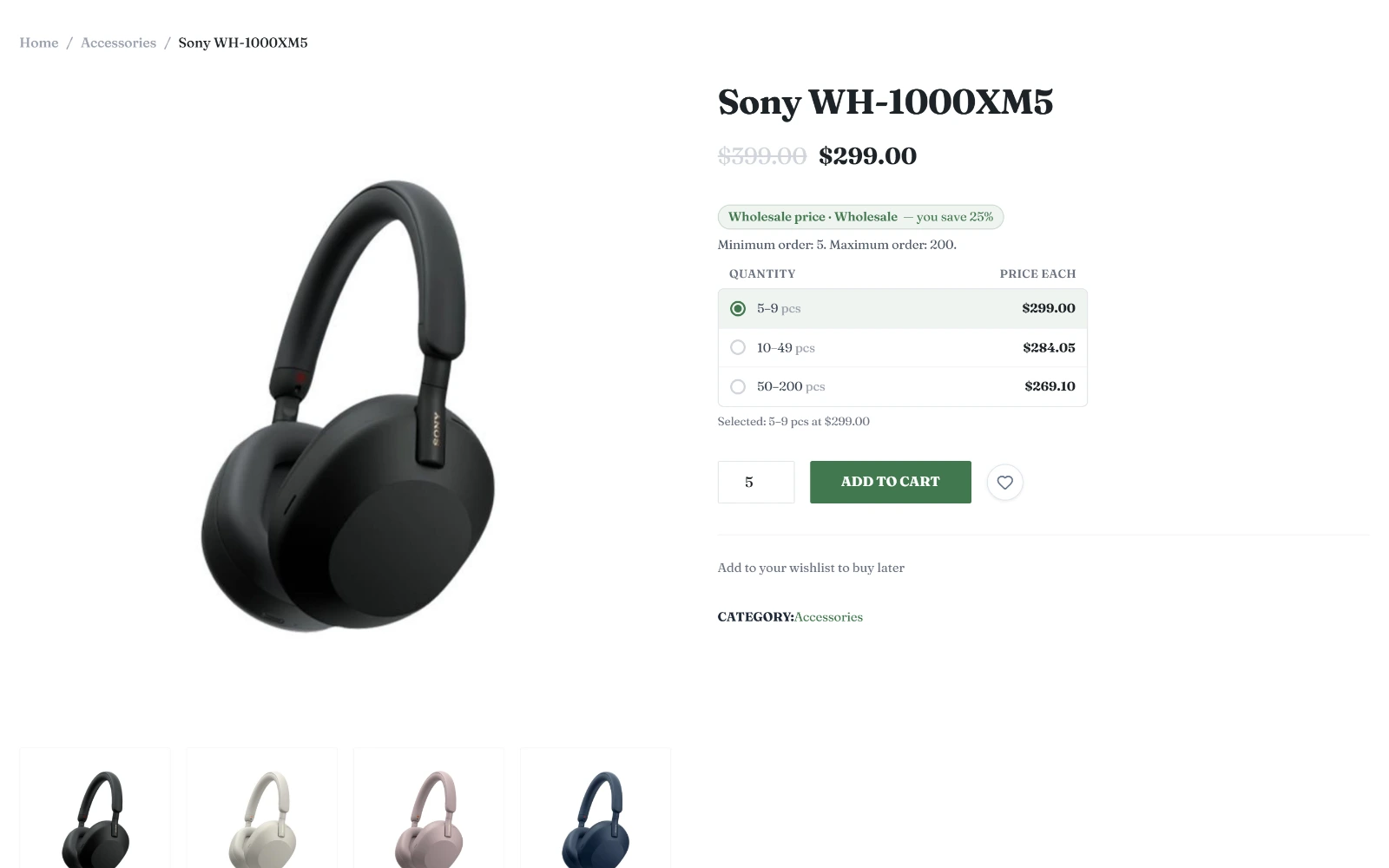
What a signed-in wholesale customer sees on a product page: their price with retail struck through, the saving, the minimum and maximum order, and the quantity tiers as a picker tied to the quantity box.
What you can do with it
| Area | What's included |
|---|---|
| Customers | An application form with approval (manual or automatic), customer levels, a Wholesale Customer role, company accounts with several buyers |
| Prices | A price per level for each product and each variation, category discounts, a level discount, quantity tiers, mix & match, contract prices for one company |
| Who sees what | Wholesale-only or retail-only products, prices hidden from guests or from everyone but trade customers, a fully private store |
| Ordering rules | Minimum quantity, pack size and maximum per product; minimum order value and item count per level |
| Checkout | Payment and shipping methods per level, free shipping from an amount, deposits, spend discounts, PO numbers, tax exemption, buying on account (credit) |
| Self-service | A wholesale login page, a portal with quick order, order again, a price list, saved lists, quotes, invoices and an account statement |
| Running it | Approval of company buyers' orders, sales reps with commission, reports, text messages (SMS), price import and export as CSV |
Requirements
- FalconCMS Pro with an active licence. Without one the plugin loads nothing.
- The Falcon Shop plugin switched on (it is on by default; see Shop Plugin & Templates).
- FalconCMS 2.8.1 or newer. On an older core the plugin shows a notice and changes nothing.
Switching it on
- Install or update Pro, then open Plugins.
- Find Falcon Wholesale and click Activate.
Activation sets up three things for you:
- a customer level called Wholesale, set as the default level;
- the Wholesale Customer role, which approved trade customers get beside their own role;
- a page called Wholesale Login at
/wholesale-login, holding the login form.
A Wholesale menu appears in the admin sidebar, under the shop:
| Screen | What it is for |
|---|---|
| Customers | Applications and approved accounts, with each customer's details, credit and contract prices |
| Quotes | Quote requests from the cart, which you price and send |
| Levels | The kinds of trade customer (Wholesale, Dealer, Distributor…) and what each one gets |
| Reports | Wholesale revenue, top customers and products, what is owed, and quiet customers |
| Import / export | Every wholesale price, minimum and pack size as one CSV file |
| Settings | Applications, who sees prices, private store, checkout options, invoices, credit, SMS and sales reps |
Quick start
A working wholesale shop in five steps:
- Check the settings. Open Wholesale → Settings. The defaults are sensible: applications are accepted and wait for your approval, coupons and automatic promotions are off for wholesale prices, and a wholesale customer never pays more than a retail sale price. See Settings.
- Set your levels. Wholesale → Levels already has Wholesale. Give it a discount off retail, or leave 0 and price products yourself. Add more levels (Dealer, Distributor) if different customers get different terms. See Customers & Levels.
- Price a product. Open a product and its Wholesale tab: a price per level, quantity tiers, a minimum quantity and a pack size. See Prices.
- Tell trade customers where to apply. Link to
/wholesale/apply(or add the[falcon_wholesale_apply]shortcode to a page), and to the Wholesale Login page. - Approve applications in Wholesale → Customers. The customer is emailed, signs in, and sees their prices everywhere in the shop.
How a wholesale customer gets their price
For a signed-in, approved customer, the price of a product comes from the first of these that has a value:
- a line from a quote they accepted keeps the quoted price in the cart
- a contract price for their company (per product or per variation) — final, no tiers on top
- the variation's wholesale price for their level (variable products)
- the product's wholesale price for their level (simple products)
- the biggest category discount for their level, off the regular price
- their level's discount, off the regular price
Then, from 3 to 6, the quantity tier the cart quantity reaches, if the product has tiers. The full rules, with mix & match and "never more than retail", are on the Prices page.
Retail shoppers and guests are never affected. Prices that depend on the customer are shown only to signed-in customers, and those never get a cached page.
Where to go next
- Customers & Levels — applications, approval, levels, company accounts, sales reps
- Prices — product, variation, category and contract prices, tiers, visibility
- Ordering & Checkout — minimums, packs, payment and shipping per level, deposits, credit, quotes
- Login & Portal — the login page, the portal, quick order, invoices
- Settings & Tools — every setting, SMS, emails, reports, CSV import
- For Developers — hooks, shortcodes and data