
Containers & Columns
Every Falcon Builder layout starts with Containers, which hold Columns, which hold Elements.
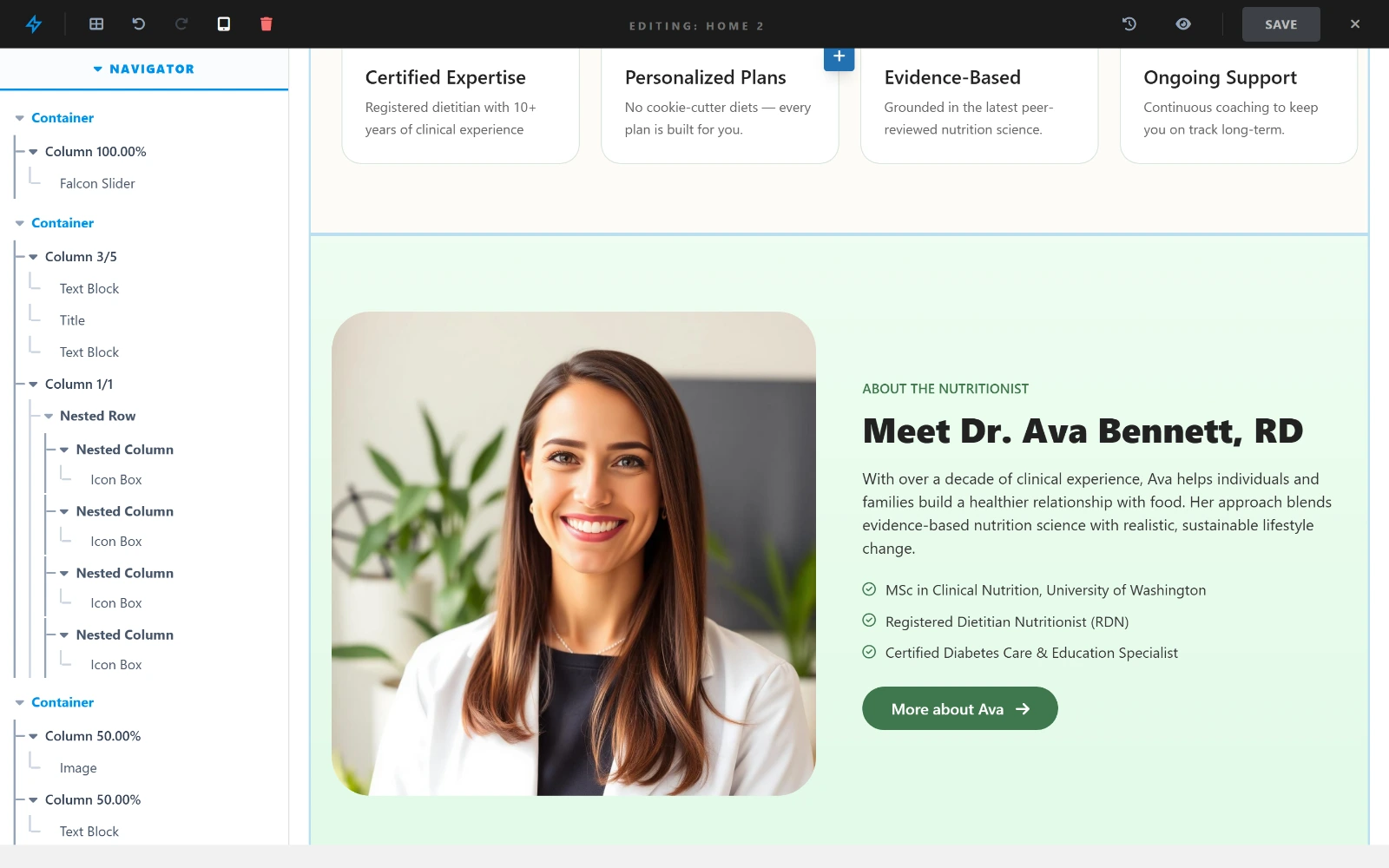
The navigator on the left shows the nesting: a container holds columns, a column can hold a nested row, and elements sit at the leaves.
Containers
A container is a full-width row on your page. Click + Add Container to open the Column Select modal.
Container Settings
Right-click the container toolbar or click the gear icon:
Layout:
- Background color, gradient, or image
- Background position and size
- Min height
- Padding (top, right, bottom, left)
- Margin
Advanced:
- CSS Class, CSS ID
- Custom CSS
- Animation on scroll (fade in, slide up, zoom)
- Sticky (sticks to top on scroll)
Visibility:
- Show/hide on Desktop, Tablet, Mobile
Container Toolbar Actions
| Icon | Action |
|---|---|
| ↕ | Drag to reorder the container |
| ✏️ | Edit container settings |
| 📋 | Duplicate container |
| 📚 | Save to Library |
| 🌐 | Save as Global Section |
| 🗑️ | Delete container |
Column Layouts
When adding a container, choose from preset column layouts:
| Layout | Description |
|---|---|
1/1 | Single full-width column |
1/2 + 1/2 | Two equal columns |
1/3 + 2/3 | Narrow + wide |
2/3 + 1/3 | Wide + narrow |
1/3 + 1/3 + 1/3 | Three equal columns |
1/4 + 3/4 | Sidebar + main |
1/4 + 1/4 + 1/4 + 1/4 | Four equal columns |
More layouts are available in the modal. Custom ratios can be set in column settings.
Columns
Each column inside a container holds one or more elements.
Column Settings
Click the column toolbar:
Size:
- Width percentage (responsive: desktop, tablet, mobile)
- Padding
Background:
- Background color or image
Vertical Align:
- Top, Middle, Bottom, Stretch
Advanced:
- CSS Class, CSS ID
- Custom CSS
Column Width
Design → Width offers the usual fractions — 1/6 through 1/1, plus Auto.
For anything they cannot express, click Use Custom Width 2.7.0 and set the width on the slider or in the box beside it. The presets disappear while a custom width is in force, because the two are the same setting and only one of them can be: whichever you set last is the column's width. Back to preset widths returns to the closest fraction.
Responsive Column Widths
Each column can have different widths per device — presets and custom widths alike:
| Device | Example |
|---|---|
| Desktop | 1/3 (33%) |
| Tablet | 45% (custom) |
| Mobile | 1/1 (100%) |
Use the device switch at the top-right of the Width panel to choose which one you are setting. This makes your layout naturally stack on mobile.
Nested columns have the same control, in the same place.
Adding Elements to Columns
Click the + button inside a column to open the Element Select modal. Choose an element type and it's inserted into the column.
Elements can be dragged within a column or between columns.
Nested Columns
A column can hold a nested row — a row of columns inside a column — for layouts a single grid cannot express: a sidebar card split in two, a feature block with its own inner columns. Add one from a column's toolbar (Add Nested).
Open, work, finish
A nested row is drawn closed: it shows its content, with a small orange panel sitting on it carrying a pencil and a +. Nothing inside can be clicked while it is closed, so a stray click meant for the page cannot land in it.
| Control | What it does |
|---|---|
| ✏️ pencil | Opens the nested columns for editing |
| ➕ plus | Adds an element to the parent column, beside the nested row |
| hover the panel | Expands it to Duplicate, Delete and Drag |
While it is open you work inside it exactly as in any column — add elements, edit them, drag them. Everything outside dims and stops responding, and no new container or column can be started, so half-finished nested work cannot be left behind by a click elsewhere.
Finish with the ✓ tick on the bar at the bottom of the row (✕ does the same). That closes it, releases the rest of the canvas, and is the point at which Save becomes available for the work you just did inside.
TIP
Editing inside a nested row does not arm the Save button on its own — the Finished tick does. Everywhere else in the builder, Save still arms the moment you change anything. Press ✓ before you leave the page.
An empty nested row shows a placeholder bar instead of content, and the Preview toggle ignores all of this and draws the real page.
Responsive Preview
Use the device buttons at the top of the builder to preview your layout on:
- 🖥 Desktop
- 📱 Tablet
- 📲 Mobile
The canvas resizes and shows how the layout looks on each device.
Saving & Publishing
- Autosave runs every 30 seconds
- Closing the tab with unsaved changes now asks you first — in the builder and on every admin screen. Note that work inside an open nested row is not counted as unsaved until you press its ✓ tick, so finish nested rows before you leave
- Click Save Draft to save without publishing
- Click Publish / Update to make changes live
- View Revisions to restore any previous version