
Device Visibility
Every element in Falcon Builder has visibility controls to show or hide it on specific devices.
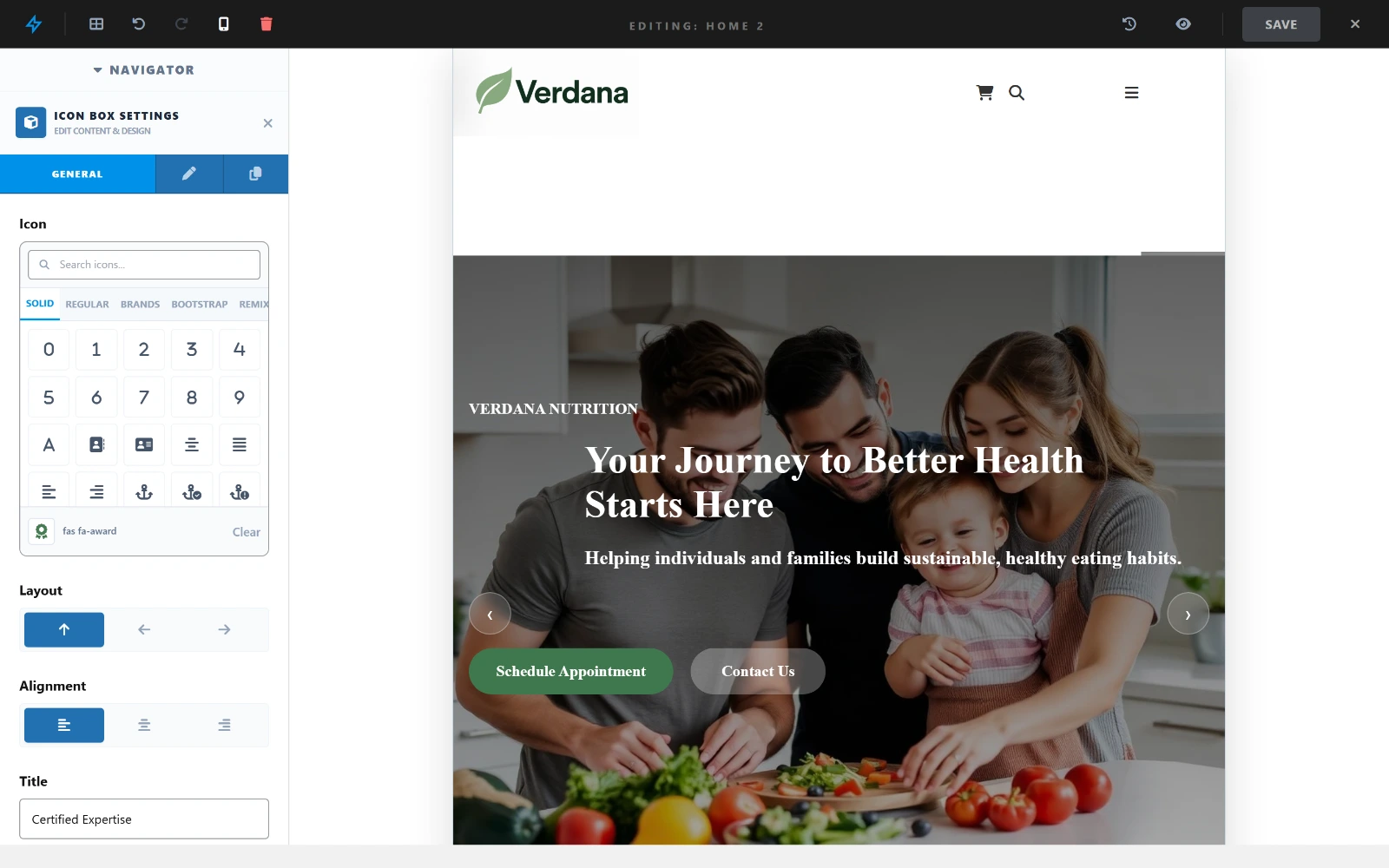
Switching the canvas to mobile narrows it to the device width, so you set and check per-device values against the layout the visitor actually gets.
How It Works
In any element's General tab, you'll find the Element Visibility row:
[ 🖥 Desktop ] [ 📱 Tablet ] [ 📲 Mobile ]- Button highlighted (solid) → visible on that device
- Button dimmed (outline) → hidden on that device
Click a button to toggle visibility.
Examples
Show on desktop only
[ ✅ Desktop ] [ ❌ Tablet ] [ ❌ Mobile ]Use for complex data tables or large images that don't work on small screens.
Show on mobile only
[ ❌ Desktop ] [ ❌ Tablet ] [ ✅ Mobile ]Use for a compact mobile navigation or a "Call Now" button.
Hide on mobile
[ ✅ Desktop ] [ ✅ Tablet ] [ ❌ Mobile ]Use to simplify layouts on small screens by removing decorative elements.
Container & Column Visibility
Visibility controls also exist at the Container and Column level (in their respective settings panels). This lets you:
- Show an entirely different layout section per device
- Have a desktop sidebar column that doesn't appear on mobile
- Use a mobile-only full-width column in place of a multi-column desktop layout
Implementation
Visibility is applied via Tailwind CSS classes (hidden, md:block, lg:block) generated from the visibility settings. No JavaScript required — pure CSS responsive hiding.