
Customers & Levels
A wholesale customer is an ordinary customer account with a wholesale account attached: their company details, a status (pending, approved or rejected) and a level. Only approved accounts get wholesale prices and rules.
Applications
Businesses apply in one of three places:
- the application page,
/wholesale/apply; - My Account → Wholesale, for a customer who already has an account;
- any page with the
[falcon_wholesale_apply]shortcode, which shows a link to the form.
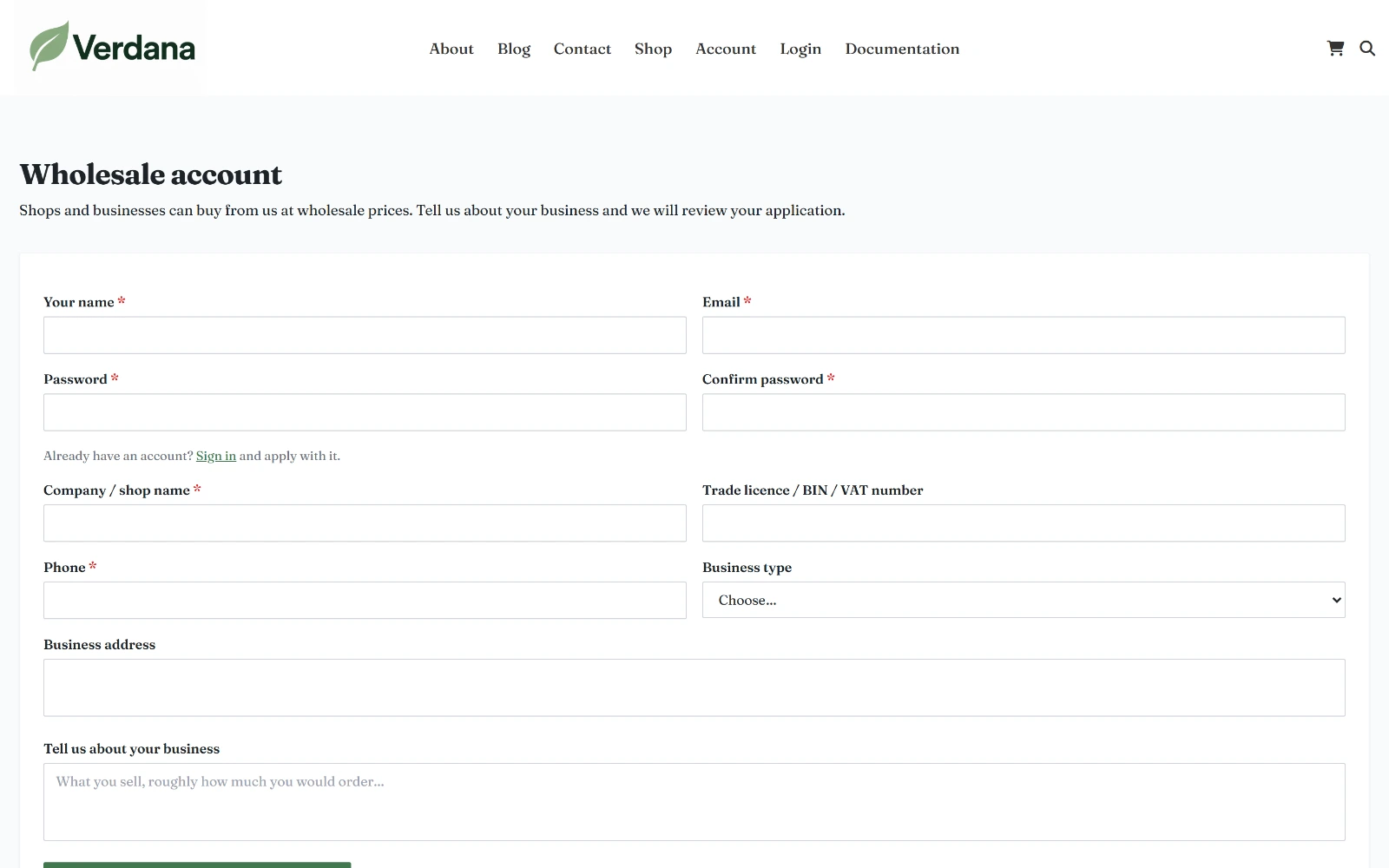
The application form, as a visitor without an account sees it.
The form asks for:
| Field | Notes |
|---|---|
| Your name, email, password | Only for visitors without an account; this creates their customer account. An email that already has an account is asked to sign in instead. |
| Company / shop name | Required |
| Trade licence / BIN / VAT number | Optional |
| Phone | Required; also used for text messages |
| Business type | Retailer, distributor, online seller, restaurant or hotel, company, institution, other |
| Business address | |
| Tell us about your business | What they sell, roughly how much they would order |
| Terms | Shown only when you write terms in Settings; the applicant must tick the box |
A signed-in visitor sees which account they are applying with (name and email, with Not you? Sign out). When the form is sent, you receive an email (to the address in Settings, or the shop's "new order" address), and the applicant sees that their application is waiting.
Spam protection
Tick the wholesale application and login forms under Settings → Integrations → Cloudflare Turnstile → Show on to protect them with Turnstile (free, in the core).
Approving and rejecting
Applications arrive in Wholesale → Customers.
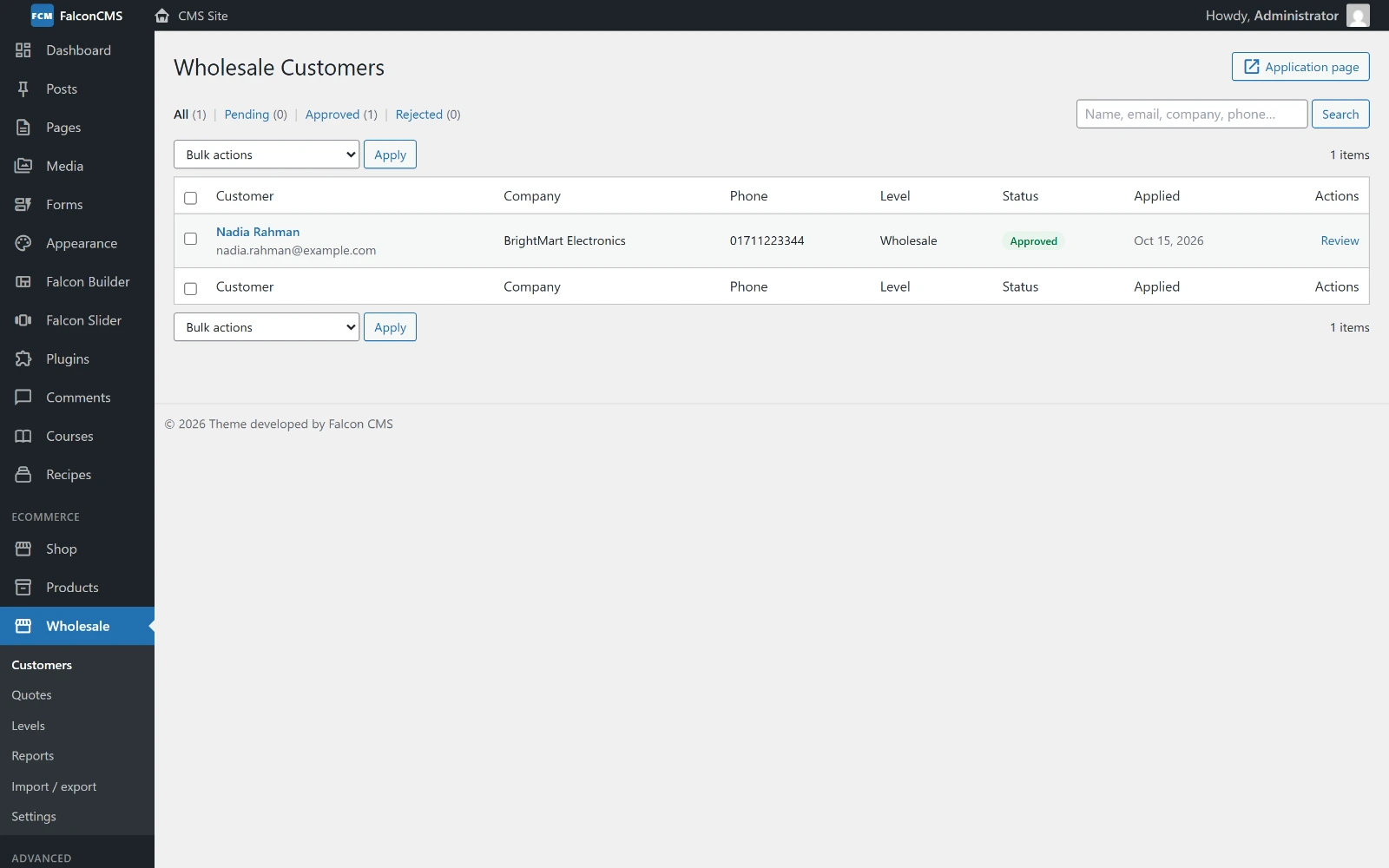
Filter by status, search by name, email, company or phone, and act on several at once.
Open one with Review. In the Decision box on the right:
- Approve and email the customer — pick the level first (the default level is preselected). The account gets wholesale prices at that level, and the customer is emailed.
- Reject emails them too. Write a reason in the box and it goes in the email.
- An approved account can be revoked the same way; it goes back to retail prices.
- Remove wholesale account deletes the wholesale account. The customer account itself stays.
Bulk actions on the list approve, reject, move to a level, or remove several accounts at once.
To approve everyone automatically, tick Approve applications automatically in Settings. You can also give an existing customer a wholesale account, or change it, from their user screen (Users → edit → Wholesale).
The Wholesale Customer role
Everyone who buys at wholesale prices carries the Wholesale Customer role, as an extra role beside their own. A customer stays a customer and staff stay staff, so the role gives nothing in the admin. It is given with approval and taken away when the account is rejected, revoked or removed. Find these customers under Users → Wholesale Customer; a "Wholesale" badge marks them.
The customer screen
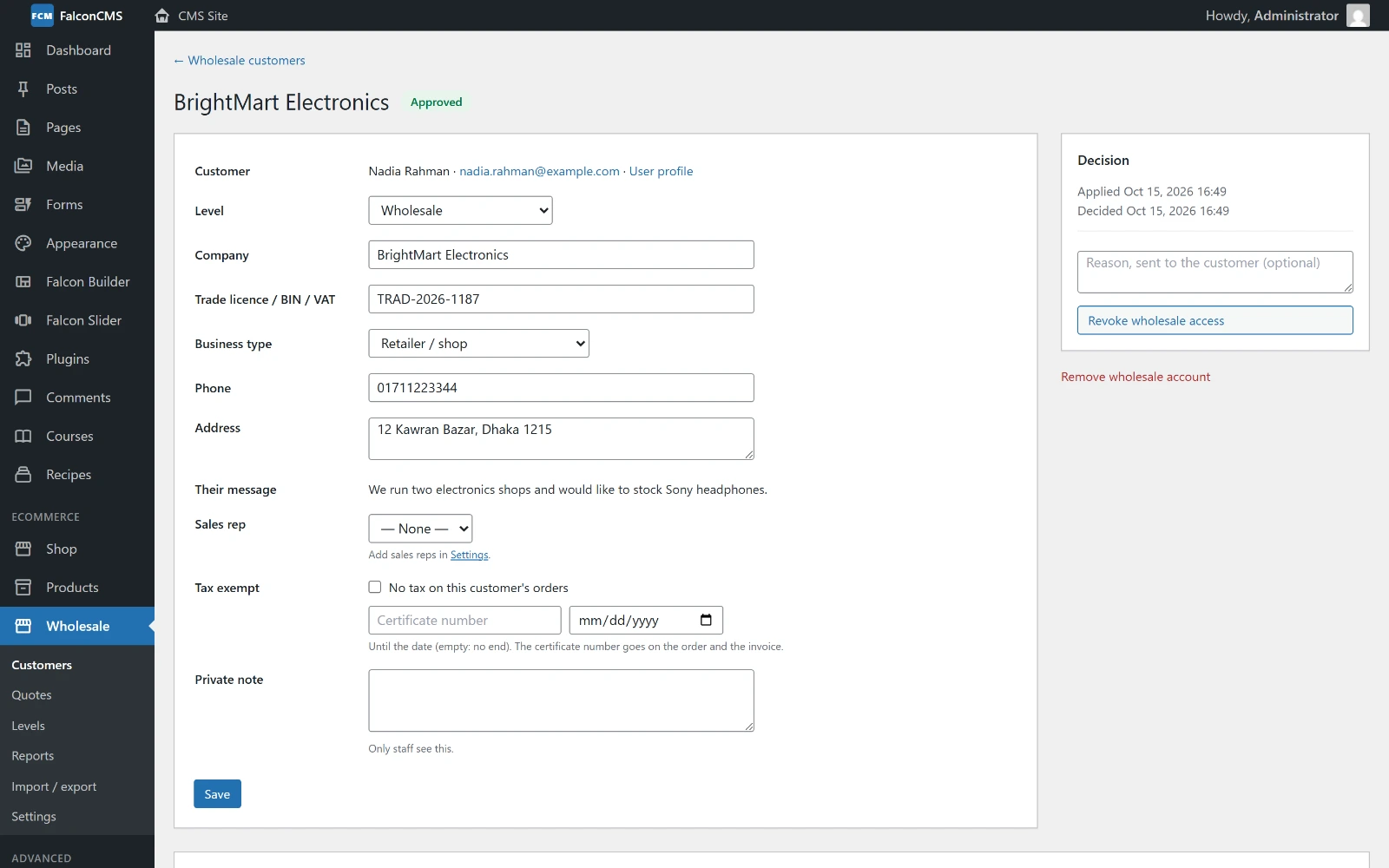
One customer's account: their company details, level, sales rep, tax exemption and a private note.
| Field | What it does |
|---|---|
| Level | Which level's prices and rules they get |
| Company, Trade licence, Business type, Phone, Address | From the application; you can correct them. The company and BIN go on invoices. |
| Their message | What they wrote when applying |
| Sales rep | The rep who looks after them (see Sales reps) |
| Tax exempt | No tax on their orders, with a certificate number and an end date (empty: no end). The order records the certificate number and the invoice shows it. With prices entered including tax, the tax line goes but prices stay the same. |
| Private note | Only staff see it |
Further down the same screen:
- Credit account (buy now, pay later) — whether they may buy on account, their credit limit and days to pay, what they owe and have available, their ledger, and forms to record a payment or an adjustment. See Buying on account.
- Contract prices — prices for this company only. See Contract prices.
- Team — the people who buy for this company, their role, and whether they have joined.
- Send an SMS — text the customer by hand, with ready-made messages to pick from (once SMS is set up in Settings).
Levels
Levels are the kinds of trade customer you have: Wholesale, Dealer, Distributor. Each customer belongs to one. Wholesale → Levels lists them; one is the default, given to newly approved customers.
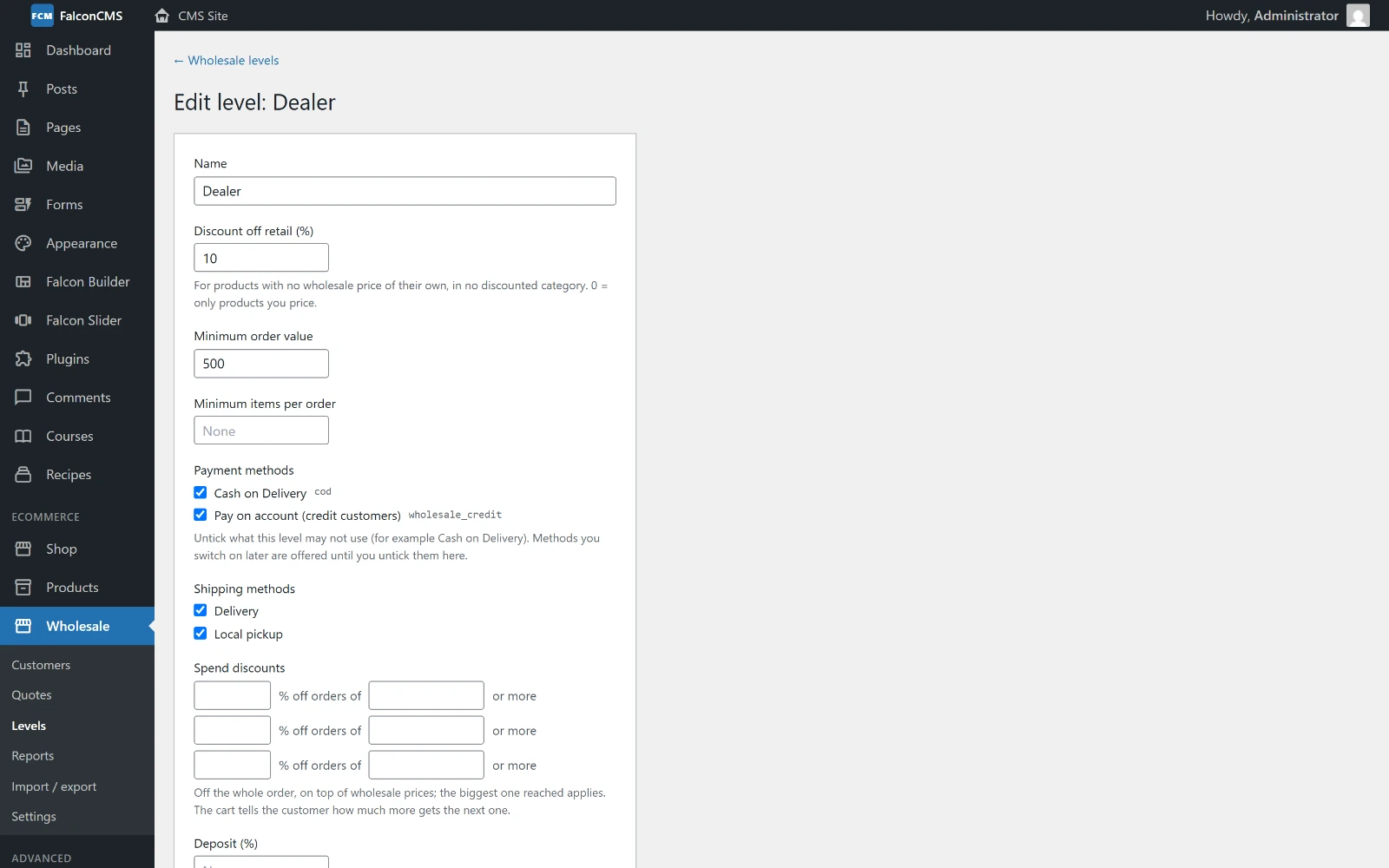
A level: its discount, minimum order, the payment and shipping methods it may use, and spend discounts.
| Setting | What it does |
|---|---|
| Name | Shown to the customer ("Wholesale price · Dealer") |
| Discount off retail (%) | For products with no wholesale price of their own and no discounted category. 0 means only the products you price yourself get a wholesale price. |
| Minimum order value | Checkout refuses a smaller order. Whether retail-priced extras count is a setting (see Settings). |
| Minimum items per order | The same, counted in items |
| Payment methods | Untick the methods this level may not use (Cash on Delivery, say). A method switched on later is offered until you untick it here. Unticking every method hides none. |
| Shipping methods | The same for shipping |
| Free shipping from | An order value from which shipping is free for this level; the cart tells the customer how much more gets it |
| Spend discounts | Up to three "X% off orders of Y or more". The biggest one reached comes off the whole order as Volume discount, on top of wholesale prices, even with promotions off for wholesale. |
| Deposit (%) | "Pay a 30% deposit now, the rest later" at checkout, and whether it is the only way to pay. See Deposits. |
Moving a customer to another level changes their prices from their next page view.
Company accounts
A business often has several people who order. The account owner (the person who applied) and any managers invite them from portal → Team, by email.
- The invitee gets a link, signs in or creates an account, and joins the company.
- Everyone in the company buys at the company's level, prices and contract prices, uses its credit, and sees its shared order history, invoices and saved lists.
- Buyers order. Managers also invite and remove people and edit the company details.
- The owner's saved delivery addresses are offered to everyone in the company at checkout.
Order approval for buyers
For each buyer the owner or a manager can require approval: every order, or orders above an amount. Such an order is placed on hold with offline payment (nothing is charged), the owner and managers are emailed, and they Approve it (it goes on as a normal order) or Decline it with a reason (it is cancelled, and stock and credit go back) in portal → Approvals. The buyer is emailed the decision, and their order list says Awaiting approval meanwhile.
Sales reps
People on your staff who look after wholesale customers. Add them in Wholesale → Settings → Sales reps: a user's email and a commission percentage. Then give each customer a rep on their screen.
From then on every order of that customer records the rep and the commission (on the goods, after discounts), the rep is emailed about the order, and Wholesale → Reports totals orders, revenue and commission per rep. Adding someone who is already a rep changes their commission.