
Login & Portal
Wholesale customers have a sign-in page and a portal of their own. Both use the same customer accounts as the rest of the shop, so a trade buyer has one login for everything.
The wholesale login page
Activating the plugin creates a page called Wholesale Login at /wholesale-login. It holds the [falcon_wholesale_login] shortcode.
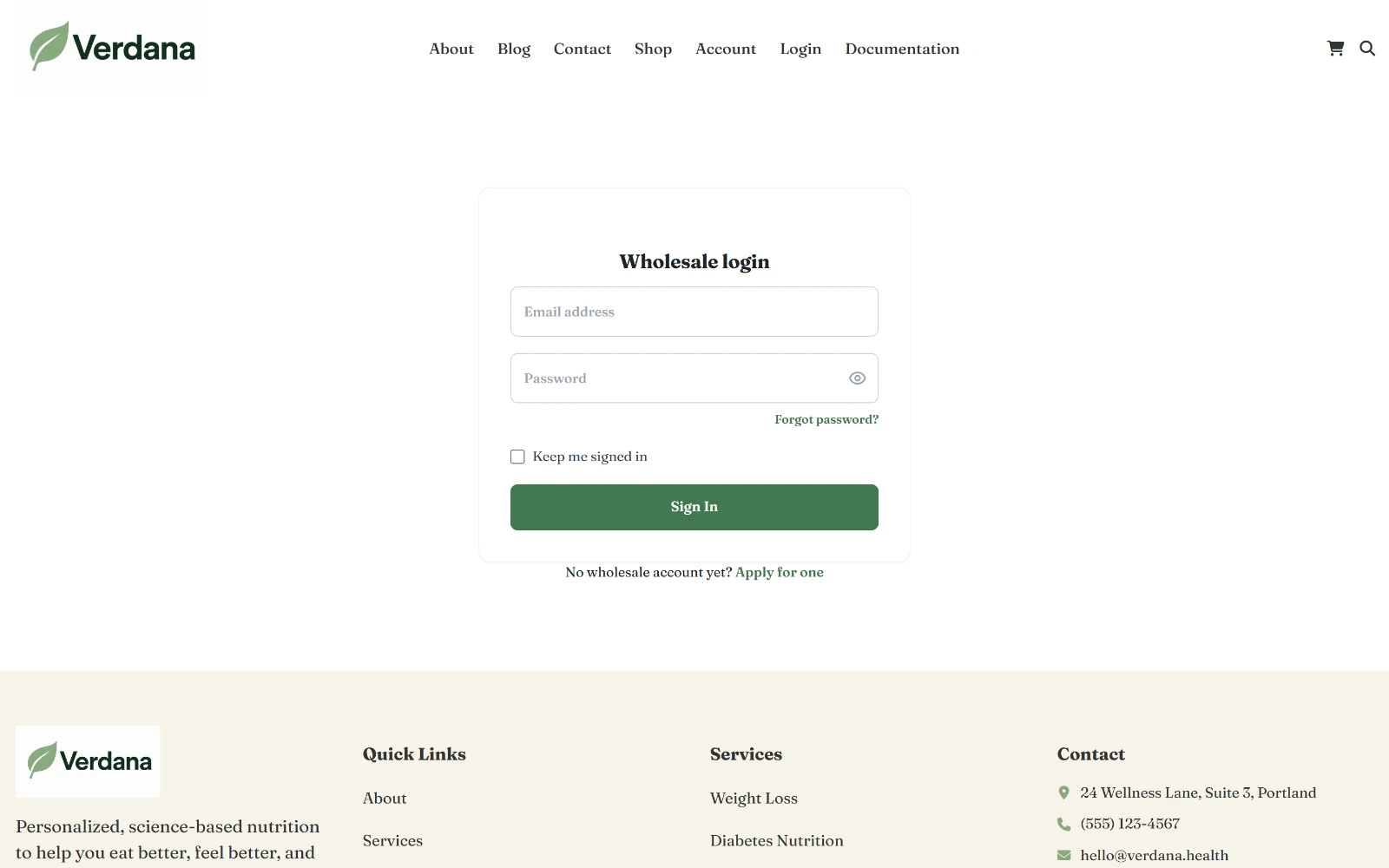
The login form takes your theme's colours. "Apply for one" leads to the application form.
- Edit it like any page: write what you like around the form, or change its address.
- To use another page, pick it in Settings → Login page. Leave it on Built-in screen to use the plugin's own screen at
/wholesale/login. - The form shares the CMS's sign-in lockout (FalconCMS 2.8.5+): five wrong passwords lock the account for 30 minutes, counted together with the dashboard and shop logins, so it cannot be used to guess an administrator's password.
/wholesale/loginalways works: it forwards to the page you chose. Every "please sign in" link in the plugin goes there.- A page deleted by mistake comes back with Settings → Create the login page. Settings warns you when the chosen page is unpublished, in the trash, or lacks the shortcode.
After signing in, a wholesale customer goes to their portal. A wholesale customer who opens the login page while signed in goes straight there too. Pages showing the form are kept out of the page cache and out of search.
The shortcode on any page
[falcon_wholesale_login title="Trade login" redirect="/wholesale/portal" apply="no"]| Option | What it does |
|---|---|
title | A heading in the card |
redirect | Where to go after signing in. A redirect_to in the address wins. |
apply="no" | Hide "No wholesale account yet? Apply for one" |
A signed-in visitor sees a link to the portal (or to apply) instead of the form.
The portal
/wholesale/portal is the customer's home. It shows their company, their level, and Shop and Cart buttons, with tabs for everything else.
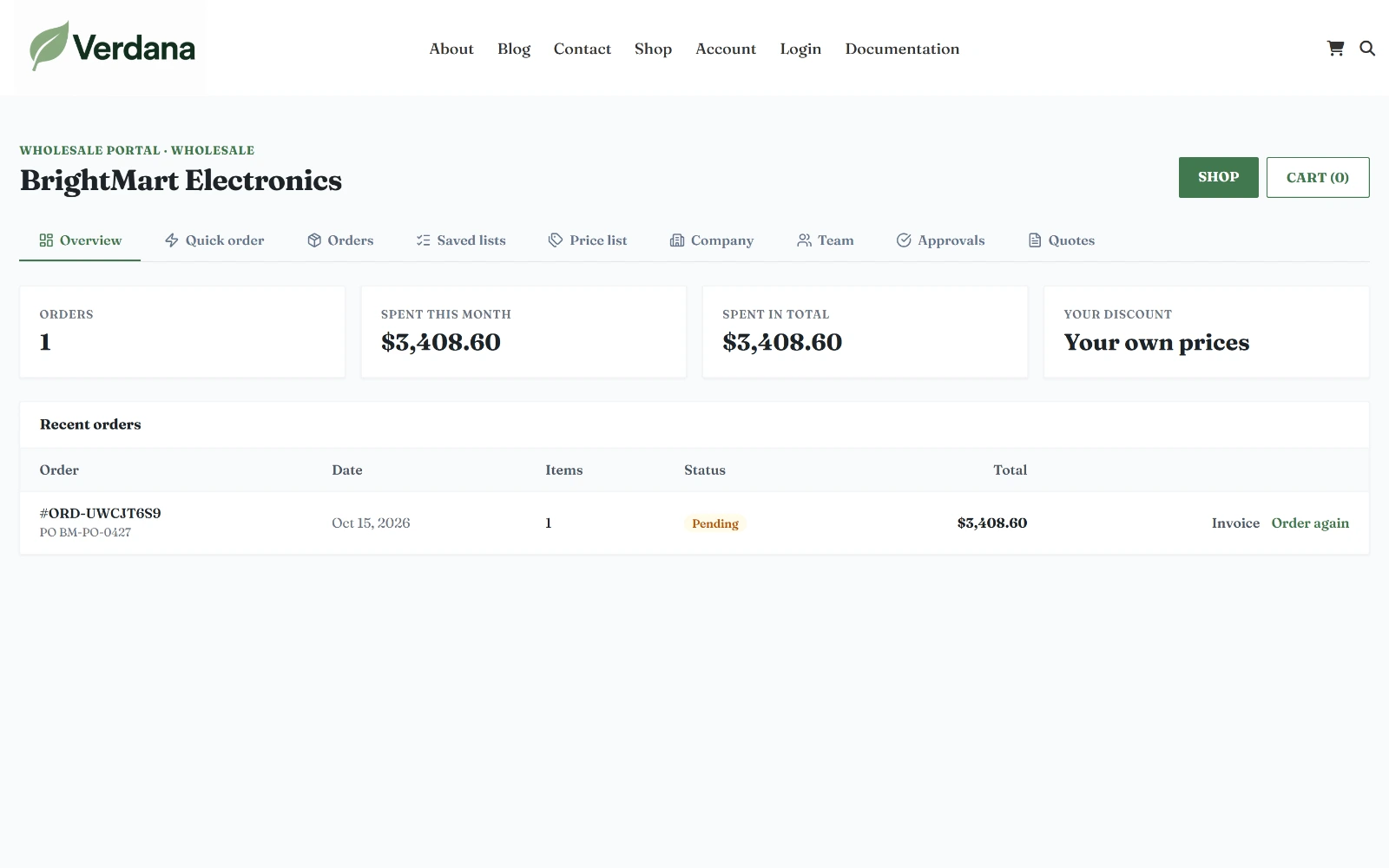
The overview: orders, spending this month and in total, the customer's discount, and recent orders with Invoice and Order again.
| Tab | What it holds |
|---|---|
| Overview | Number of orders, spending this month and in total, their discount and minimum order, recent orders |
| Quick order | Order many products at once; see below |
| Account & invoices | For customers who buy on account: what they owe, available credit, overdue amounts, unpaid invoices with due dates, and their statement |
| Orders | Every order, with its PO number and status, Invoice, and Order again (back into the cart at today's prices) |
| Saved lists | The company's saved carts, with Add to cart and reorder reminders |
| Price list | Every product they can buy, with retail, their price and the rules (minimum, pack), and Download CSV |
| Company | Company details they can update, and the company's delivery addresses |
| Team | Owners and managers: invite, change and remove the people who buy for the company, and set who needs approval |
| Approvals | Owners and managers: orders waiting for approval, with Approve and Decline |
| Quotes | Quotes asked for and received, with Accept and Decline |
Tabs appear only when they apply: Account & invoices only for credit customers, Team and Approvals only for owners and managers, Quotes only when quotes are on.
Quick order
For customers who know what they want, Quick order puts many lines into the cart at once.
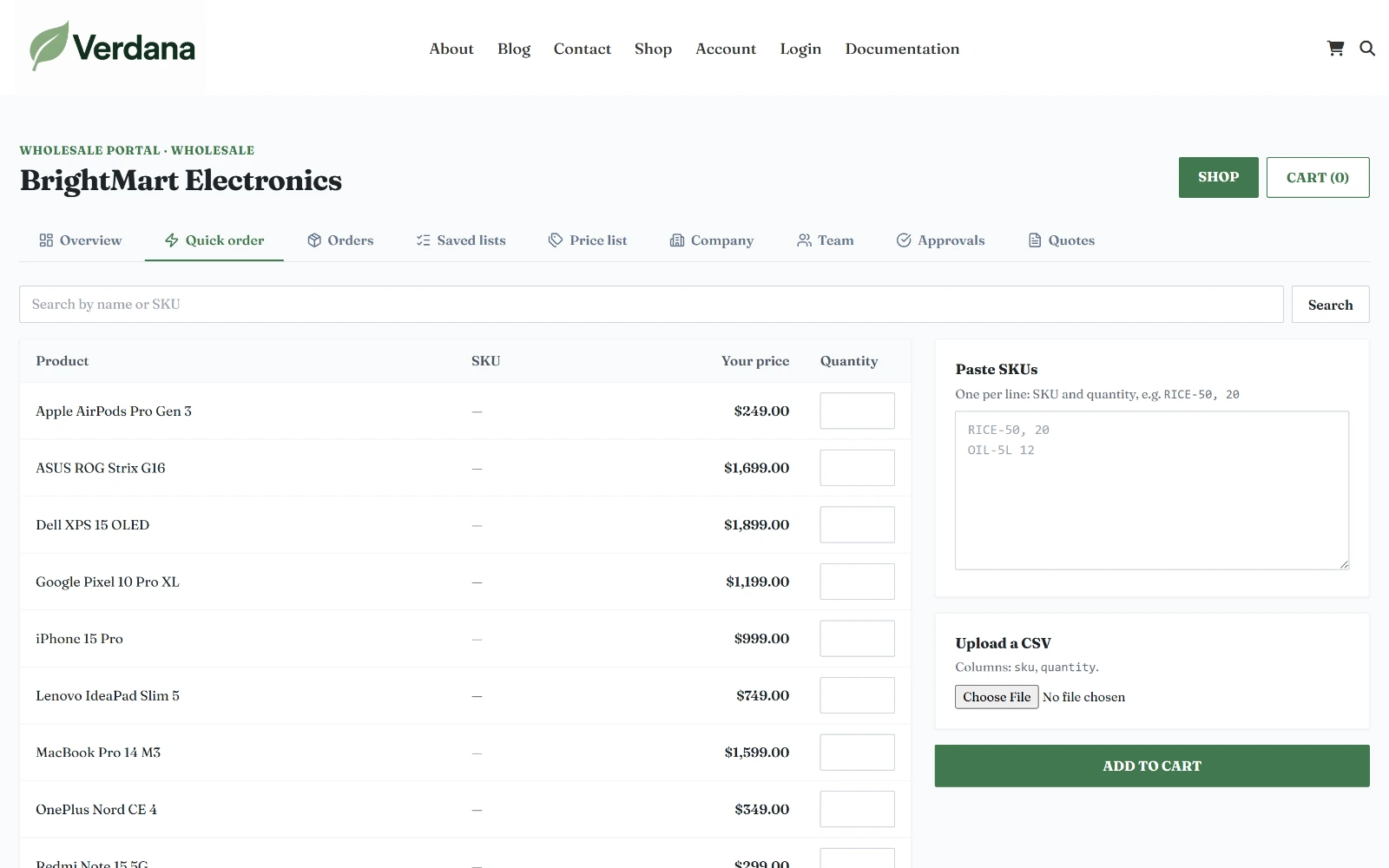
Quantities in a table, pasted SKUs, or a CSV upload — any mix goes into the cart together.
Three ways, in any mix:
- The table — every product and variation they can buy, searchable by name or SKU, with their price and a quantity box.
- Paste SKUs — one line each: SKU and quantity, such as
RICE-50, 20. - Upload a CSV — columns
skuandquantity.
Add to cart applies the same checks as the product page (they can see it, minimum quantity, pack size). Anything left out is listed with the reason.
Price list
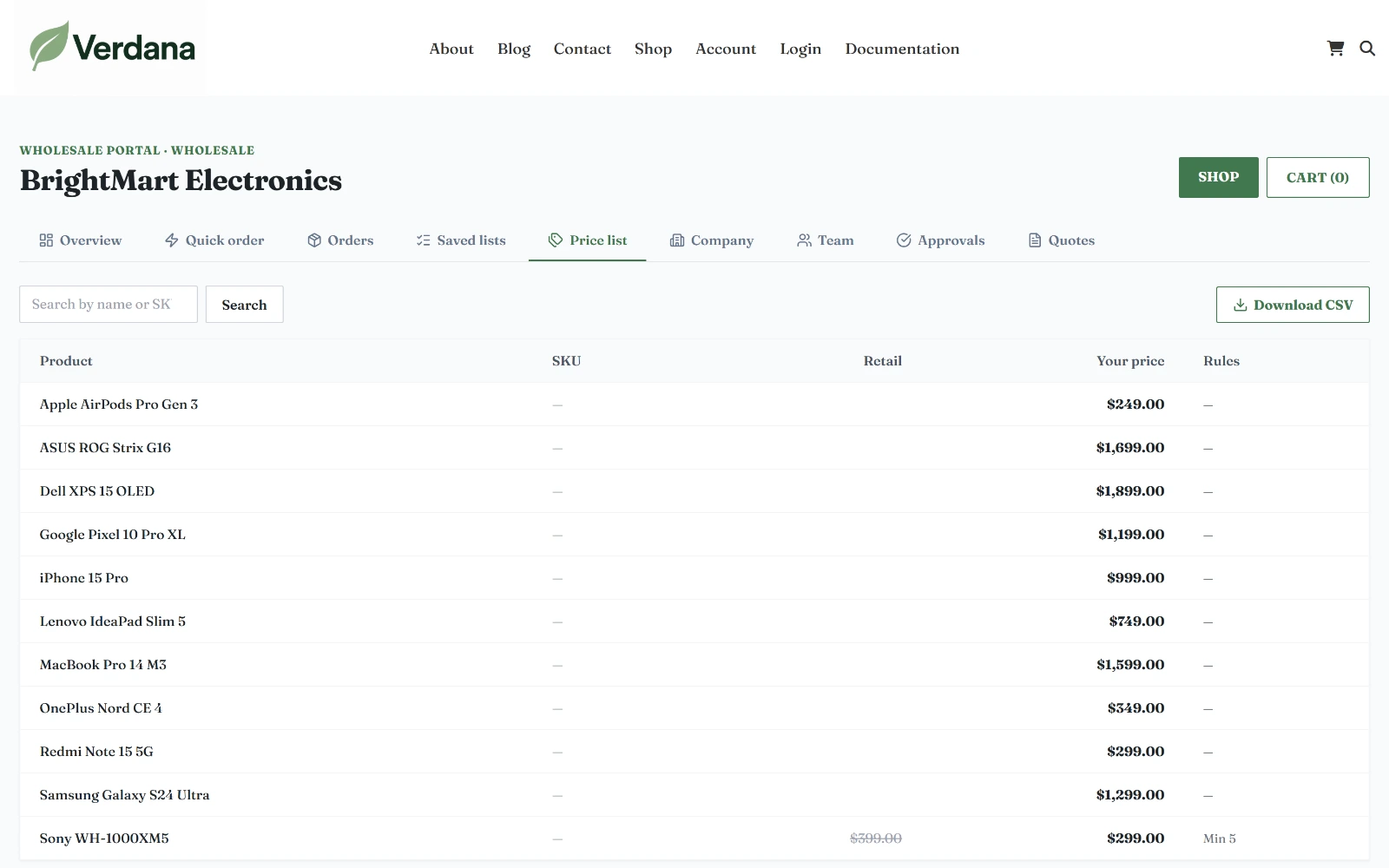
The customer's own prices next to retail, with each product's ordering rules, and a CSV download.
Invoices and delivery challans
Every order has a printable invoice and delivery challan:
/wholesale/orders/{id}/invoice, or?type=challanfor the challan;- linked from the portal's order list and the admin order screen.
They show your logo, address and BIN / VAT number, the customer's company and BIN, the PO number, the due date and amount due, any tax-exemption certificate, and your invoice footer (bank details, say). Set your BIN and the footer in Settings.
Print it, or save it as PDF from the browser's print dialog. Customers can open their own orders' documents; staff can open anyone's.
Private store
Settings → Private store closes the whole storefront:
| Option | Who can browse the shop |
|---|---|
| Off | Everyone |
| Signed-in customers only | Any signed-in customer |
| Approved wholesale customers only | Trade buyers only |
Everyone else is sent to the wholesale login page. The login, application and My Account pages stay open, and so does the admin.