
Media Library
The Media Library handles all file uploads: images, videos, and documents.
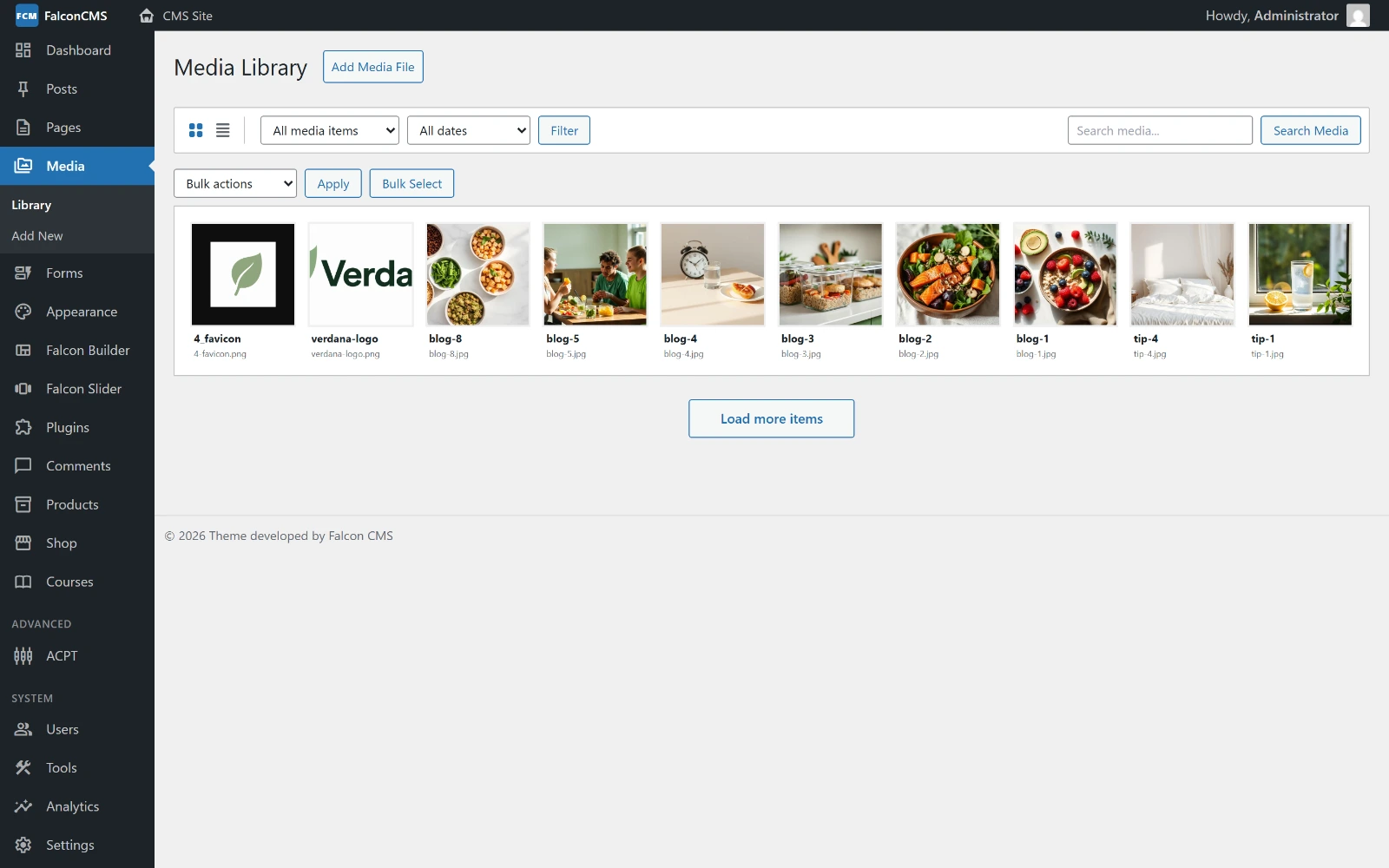
Every upload in one grid, filterable by type and date, with bulk selection.
Uploading Files
Admin → Media → Add New
- Drag and drop files or click to browse
- Supports: JPEG, PNG, GIF, WebP, SVG, MP4, PDF, and more
- Multiple files can be uploaded at once
Managing Media
Admin → Media shows all uploaded files in a grid or list view.
Click any file to:
- Edit Alt text (important for SEO and accessibility)
- Edit Title and Caption
- Get the direct URL
- Delete the file
Bulk Operations
Select multiple files and:
- Bulk Delete — Remove multiple files at once
- Bulk Optimize — Compress images to reduce file size
Using Media in Content
In the Editor
Click the Image button in any content field or click Featured Image to open the media picker.
In Builder Elements
Image, Gallery, and Video elements all have media picker buttons that open the library.
In Code
php
use Acme\CmsDashboard\Models\Media;

// Get all media
$images = Media::where('type', 'image')->latest()->get();

foreach ($images as $media) {
    echo $media->url;        // Full URL
    echo $media->filename;   // "photo.jpg"
    echo $media->alt;        // Alt text
    echo $media->size;       // File size in bytes
    echo $media->mime_type;  // "image/jpeg"
}

// Get the featured image of a post
$post = get_falcon_post('my-post');
echo $post->featured_image;  // URL string
Storage
Files are stored in Laravel's storage/app/public/ directory and served via the storage symlink.
If uploads aren't working, run:
bash
php artisan storage:link