
Post Types
Falcon CMS has three layers of content types:
- Built-in types — Posts, Pages, Products (hardcoded, always available)
- Custom Post Types — Created from Admin → Post Types
- Advanced Custom Post Types (ACPT) — Full featured CPTs with custom fields and taxonomies
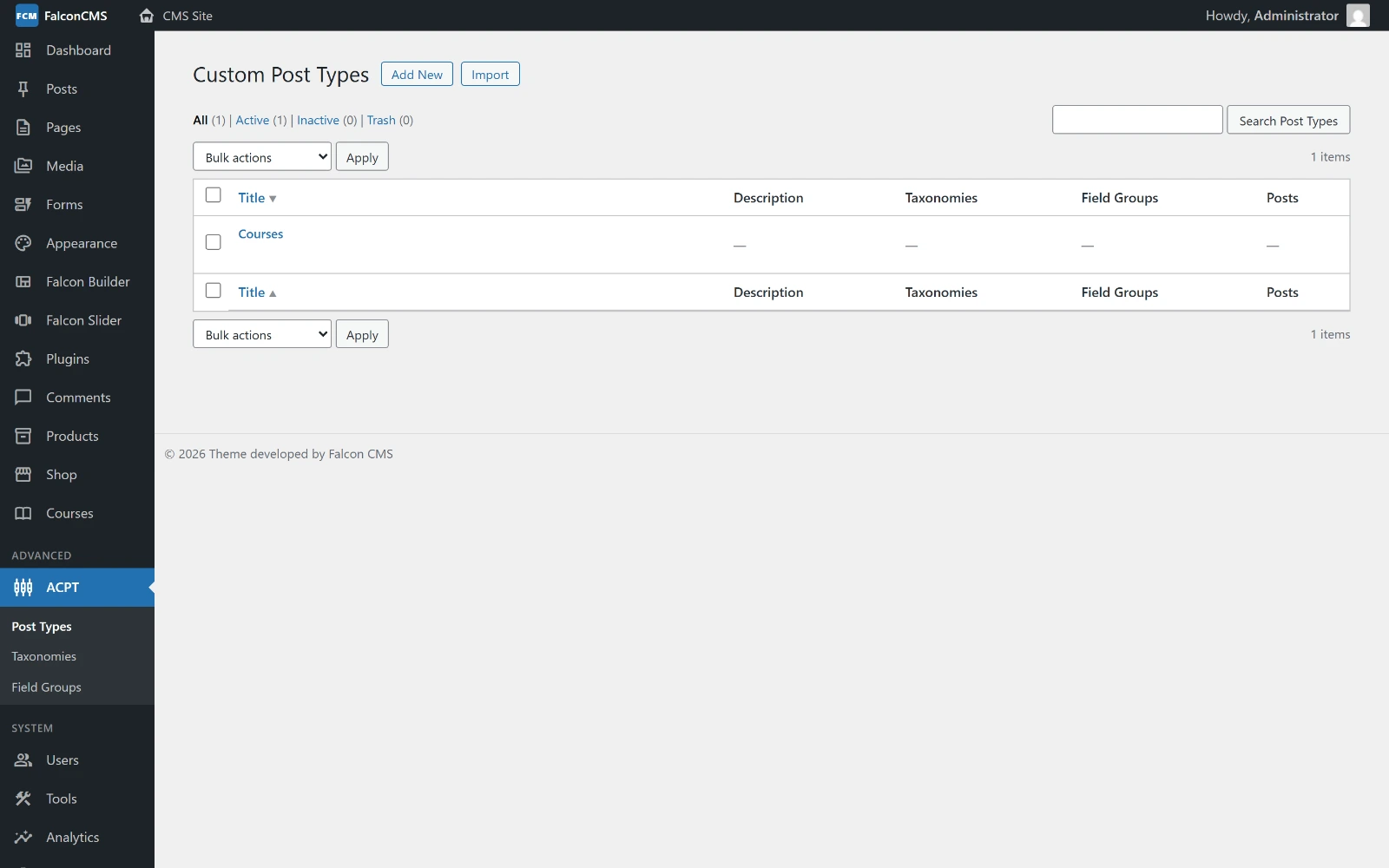
Custom post types are created from the dashboard. Each one gets its own admin panel, archive, and single view.
Built-in Post Types
Pages
Static pages with full builder support. Each page can use a template and the drag-and-drop builder.
- Admin: Admin → Pages
- Frontend URL:
/{slug}(e.g.,/about-us) - Builder: Full Falcon Builder support
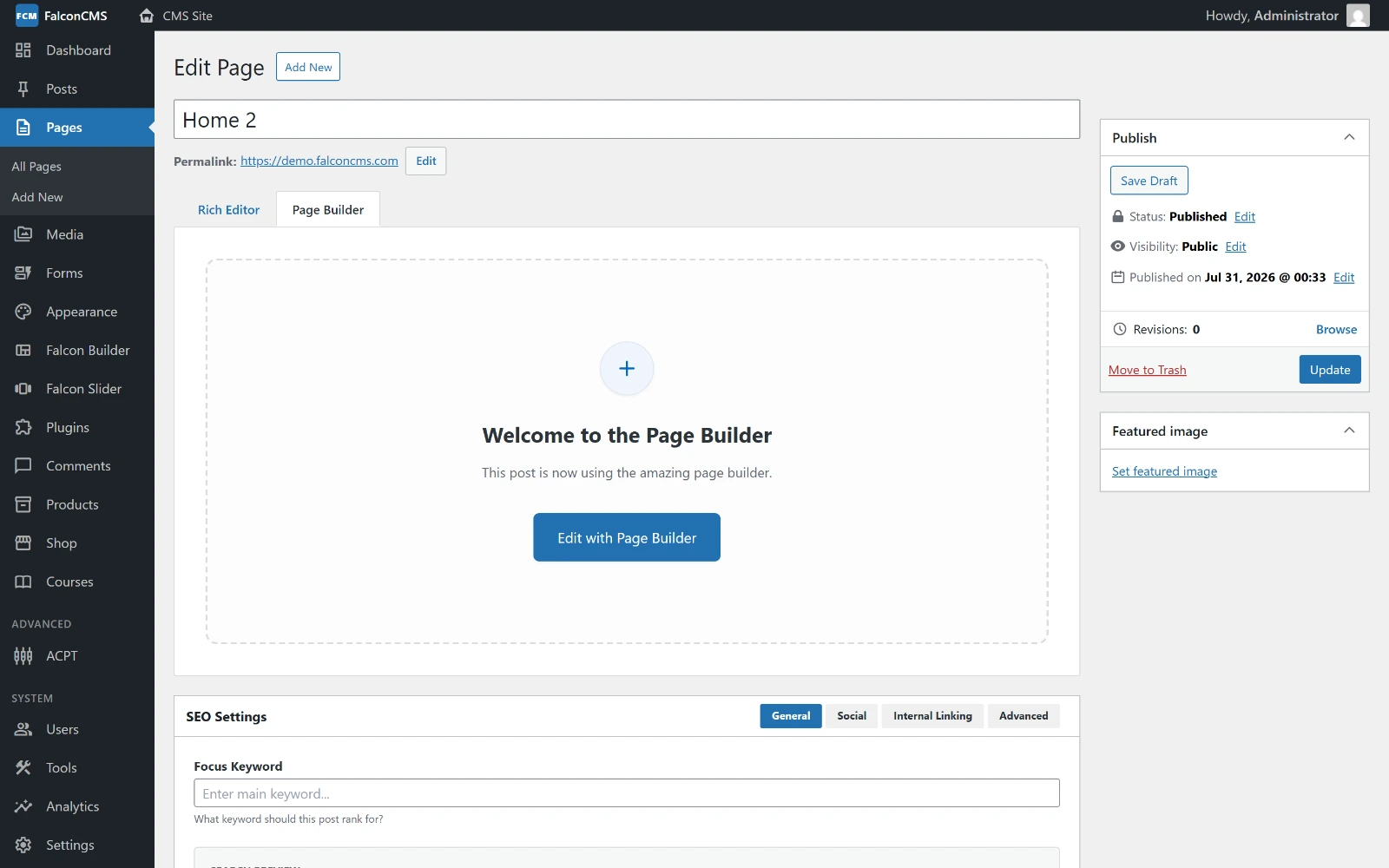
The editor for a page: title and permalink, a Rich Editor / Page Builder switch, publish controls, featured image, and the SEO panel below.
Posts
Blog posts with categories, tags, comments, and scheduling.
- Admin: Admin → Posts
- Frontend URL:
/blog/{slug}or/{slug}depending on permalink setting - Features: Categories, Tags, Revisions, Scheduling, Comments, Author
Products
E-commerce products. Managed under Admin → Products.
- Frontend URL:
/products/{slug} - Features: Product Categories, Product Tags, Variable Products, Pricing, Inventory
Custom Post Types
Create simple CPTs from the admin — no code required.
Creating a Custom Post Type
- Go to Admin → Post Types
- Click Add New
- Enter: Name, Slug, Icon (FontAwesome class)
- Save
The new CPT appears instantly in the sidebar under its own menu.
Accessing CPT Content
// Get posts of a custom type
$projects = get_falcon_posts([
    'type'  => 'project',  // your CPT slug
    'limit' => 10,
]);

foreach ($projects as $post) {
    echo $post->title;
    echo get_falcon_permalink($post);
}
CPT Frontend URLs
CPT posts resolve at /{type}/{slug} — e.g., /project/my-first-project.
Advanced Custom Post Types (ACPT)
ACPT gives you full control: custom taxonomies, custom fields, field groups, and more.
Creating an ACPT
- Go to Admin → ACPT
- Click Add New
- Configure: Name, Slug, Icon, Supports (title, content, excerpt, thumbnail)
- Save
Adding Custom Taxonomies to an ACPT
After creating the ACPT:
- Go to Admin → ACPT → Taxonomies
- Attach to your CPT, set Singular/Plural names and Slug
Adding Custom Fields
- Go to Admin → ACPT → Fields
- Create a Field Group (e.g., "Project Details")
- Add fields: text, textarea, select, checkbox, radio, number, date, color, image, etc.
Reading Custom Fields in Templates
// Single field
$deadline = get_custom_field($post, 'deadline');

// All fields (keyed array)
$fields = get_post_custom_fields($post);
echo $fields['deadline'];
echo $fields['client_name'];
Post Status Flow
| Status | Description |
|---|---|
draft | Not public, work in progress |
pending | Awaiting editor review |
published | Live and visible |
scheduled | Auto-publishes at published_at time |
private | Only visible to logged-in admins |
trash | Soft-deleted, recoverable |
Scheduling Posts
Set a future published_at datetime — the status automatically changes to scheduled. Falcon CMS runs falcon:publish-scheduled every minute to auto-publish due posts.
You can also trigger it manually:
php artisan falcon:publish-scheduledRevisions
Every time you save a post, a revision is created. To view revisions:
- Open any post/page in the editor
- Click Revisions in the sidebar
- Compare versions side-by-side
- Click Restore to revert
Revisions support both the Classic editor and the Falcon Builder.