
Falcon Security Pro
The Falcon Security plugin adds two-factor sign-in (an app, a passkey, or codes by SMS and WhatsApp), sign-in with a phone code, phone confirmation and a fake-order risk score for cash-on-delivery orders, "confirm it's you" before risky changes, impossible-travel checks, alerts (email, Telegram, WhatsApp), a password policy, a firewall, a Content Security Policy builder, a spam guard, a malware scanner checked against the signed release, known-vulnerability alerts, a security score with monthly reports, and an agency dashboard. It ships with FalconCMS Pro. Activate it under Plugins, then open Security in the admin menu.
Two-factor sign-in
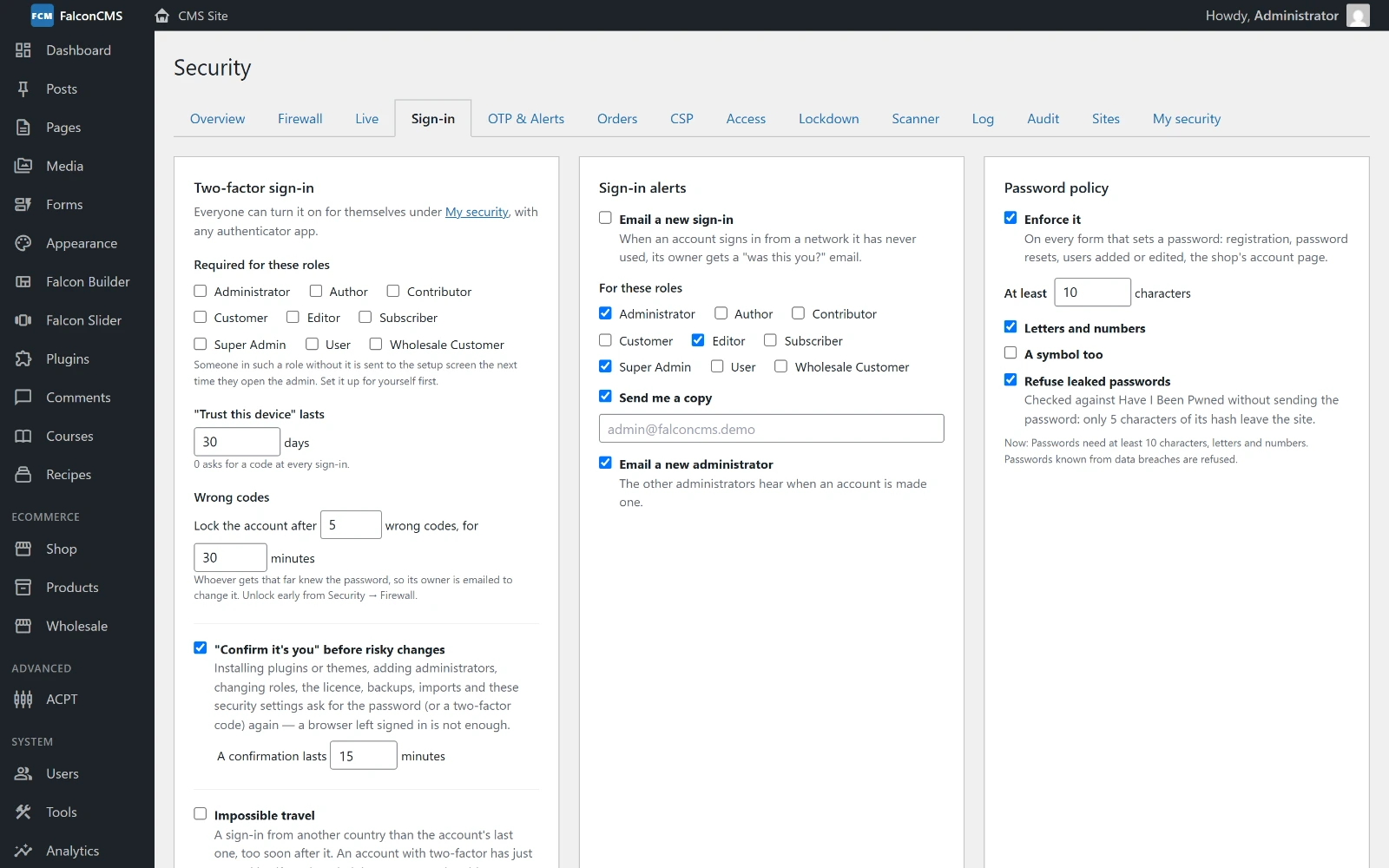
After the password, the site asks for a 6-digit code from an authenticator app on your phone, so a stolen password is not enough to get in. Any app works: Google Authenticator, Microsoft Authenticator, Authy, 1Password, Bitwarden.
Setting it up — open Security → My security (every user can, whatever their role), scan the QR code with the app, type the code it shows and press Turn on. Save the 8 recovery codes it then shows: if you lose your phone, each one signs you in once.
Signing in — after the password, the sign-in page asks for the code from the app, below your email (a pasted 6-digit code is sent at once). Not you? goes back to the password. Tick Don't ask again on this device to skip the code on that browser for 30 days (change the number in Security → Sign-in; 0 always asks).
Wrong codes lock the account — whoever reaches the code step already knew the password. After 5 wrong codes (adjustable) the account is locked for 30 minutes: the sign-in page refuses it even with the right password, and the account's owner gets an email telling them someone knows their password. Starting over does not reset the count. An administrator can lift the lock early under Security → Firewall → Unblock.
Requiring it — in Security → Sign-in, tick the roles that must use it. Every role is listed, including ones plugins add (Wholesale Customer, say), and a user's extra roles count too. The users list there shows everyone, with a role filter and a search. Someone in such a role who has not set it up is sent to the setup screen the next time they open the admin. Set it up for yourself first.
Lost phone — sign in with a recovery code, or ask an administrator to Reset your two-factor in Security → Sign-in; you then sign in with your password and set it up again.
Codes by SMS or WhatsApp instead of an app — once the site can send messages (see Text and WhatsApp messages), verify your number under Security → My security → My phone, then press Turn on with my phone. After the password the site sends the code to your phone (Send a new code if it does not arrive). It is weaker than an app — a number can be moved to another SIM — so a site can keep chosen roles (say Administrator) to an app or a passkey: Security → OTP & Alerts → Not for these roles. Use an authenticator app instead moves you over at any time, even when your role must use two-factor.
Text and WhatsApp messages
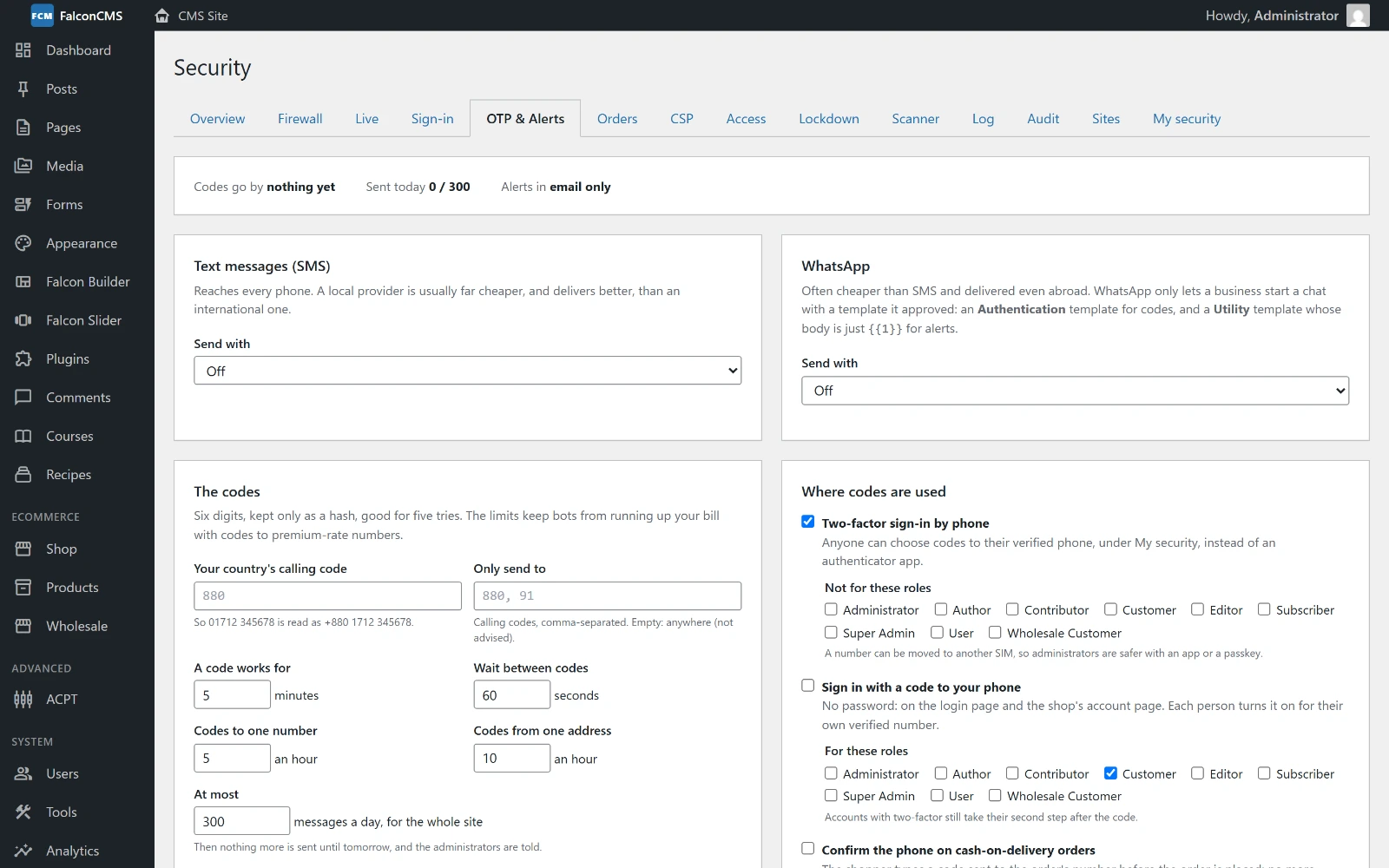
Security → OTP & Alerts connects the site to a service that sends text messages and WhatsApp messages. They carry one-time codes — the two-factor step, signing in without a password, confirming the phone on a cash-on-delivery order — and, if you like, security alerts.
Text messages (SMS) — choose Twilio, or an SMS provider's web API for local providers, which are usually far cheaper and deliver better: pick BulkSMSBD, sms.net.bd (Alpha SMS), Greenweb or SSL Wireless to fill the fields from the provider's documentation, then add your API key and sender ID. Another provider works with any service that takes a web request: write its fields as name=value lines with placeholders ({to}, {to_digits}, {to_local}, {message}, {code}, {api_key}, {sender}). Many providers answer "OK" even when they refused a message, so set A good answer contains to the text their success reply holds.
WhatsApp — choose WhatsApp Cloud API (Meta's own, from your WhatsApp Business account: the phone number ID and a permanent access token) or Twilio. WhatsApp only lets a business start a chat with a template it approved: make an Authentication template for codes and a Utility template whose body is just {{1}} for alerts, then name them here.
Test mode writes every message to the application log instead of sending it, so you can try everything before paying for a provider. Send a test sends one real message and, if it fails, shows the provider's own reason.
Limits — set your country's calling code (880 for Bangladesh) so numbers typed as 01712 345678 work, and the calling codes the site may send to: bots fill code forms with premium-rate numbers abroad and share what you are charged ("SMS pumping"). Codes last 5 minutes and allow 5 tries; there is a wait between codes, a number of codes per number and per address in an hour, and a cap for the whole site in a day, after which nothing more is sent until tomorrow and the administrators are told. Recent messages lists what was sent and why anything failed (numbers are masked).
Sign in with a code to your phone
Tick Sign in with a code to your phone in Security → OTP & Alerts and choose the roles that may (Customer, by default). Each person then turns it on for their own verified number — in the shop's account page under Phone (customers never see the admin), or under Security → My security. The login page and the shop's sign-in show Sign in with a code to your phone: type the number, then the code. The answer is the same whether or not the number has an account, so the form cannot be used to find out who is a customer. An account with two-factor still takes its second step after the code, and an account whose two-factor codes go to that same phone cannot use it (the phone alone would then open it).
Cash on delivery: confirm the phone
Most fake cash-on-delivery orders carry a number nobody answers, and each one costs a courier trip. Tick Confirm the phone on cash-on-delivery orders in Security → OTP & Alerts and pick the payment methods. At checkout, a box under the payment methods asks the shopper to press Send code and type the code sent to the order's phone number; the order is not placed until they do. A browser that confirmed a number is not asked again for 30 days, and a signed-in customer's own verified phone needs no code. Each order then shows Phone number — Confirmed with a code in its sidebar. A checkout page without the box (a theme's own checkout that lacks the falcon_before_place_order_button hook) is never blocked: orders go through as before.
Fake orders: risk score, courier history, blocklist
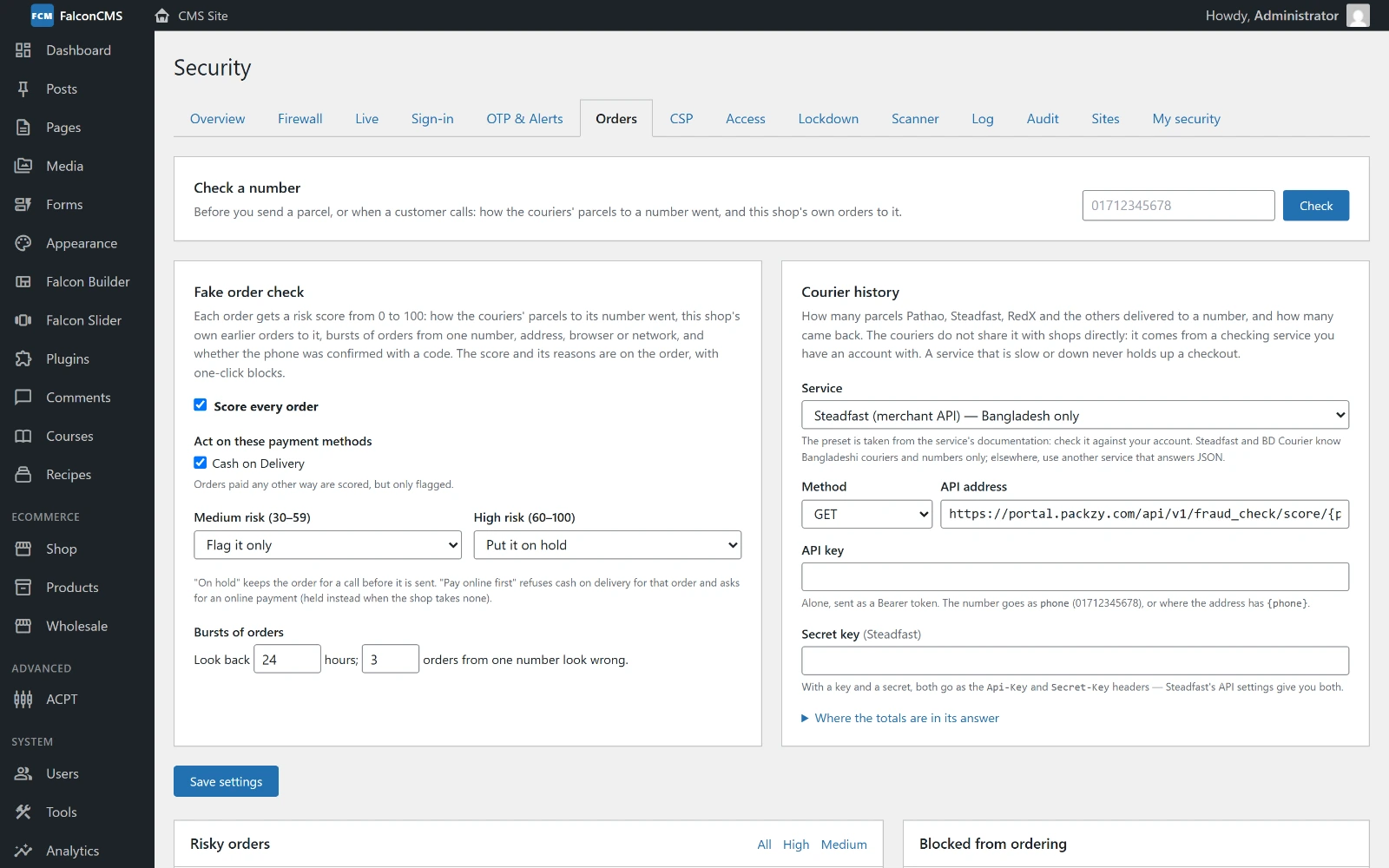
Tick Score every order in Security → Orders. Each order then gets a risk score from 0 to 100, with its reasons on the order screen:
Courier history — how many parcels the couriers (Pathao, Steadfast, RedX…) delivered to the number and how many came back. The couriers do not share this with shops directly, so it comes from a checking service you have an account with:
- Steadfast (merchant API) — Steadfast's own fraud check. Paste the API key and the Secret key from Steadfast's API settings; both are sent as Steadfast's
Api-KeyandSecret-Keyheaders, and the reports other merchants made about the number count too. - BD Courier — one answer for several couriers (the preset follows its documentation — check it against your account).
- Another service that answers JSON: add its address (
{phone}marks where the number goes), its key, and if needed where the totals are in its answer.
A service that is slow or down never holds up a checkout.
- Steadfast (merchant API) — Steadfast's own fraud check. Paste the API key and the Secret key from Steadfast's API settings; both are sent as Steadfast's
This shop's own orders to the number — cancelled, refunded or failed ones count against it, completed ones in its favour. Numbers typed any way (
01712-345678,+880 1712 345678) match.Bursts of orders — many orders from one number, several numbers ordering to one address or from one browser, many orders from one network, in the hours you choose.
A phone confirmed with a code counts in its favour.
On the payment methods you pick (cash on delivery, by default) choose what happens: medium risk (30–59) is flagged or put on hold; high risk (60+) is flagged, held, asked to pay online first (cash on delivery refused for that order) or refused. A held order waits for you to call before it is sent. Risky orders lists them.
Check a number — before you send a parcel, or when a customer calls, see how the couriers' parcels to a number went and this shop's own orders to it: in Security → Orders → Check a number, beside the search on Shop → Orders (and Check on each order's row), or with Check this number on an order's screen.
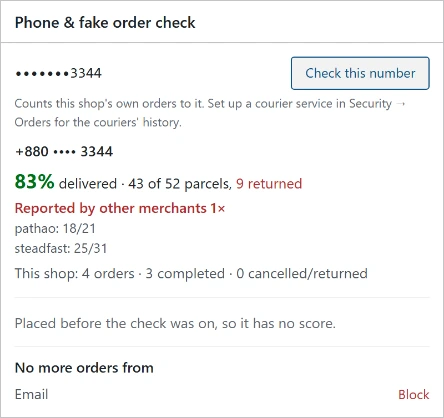
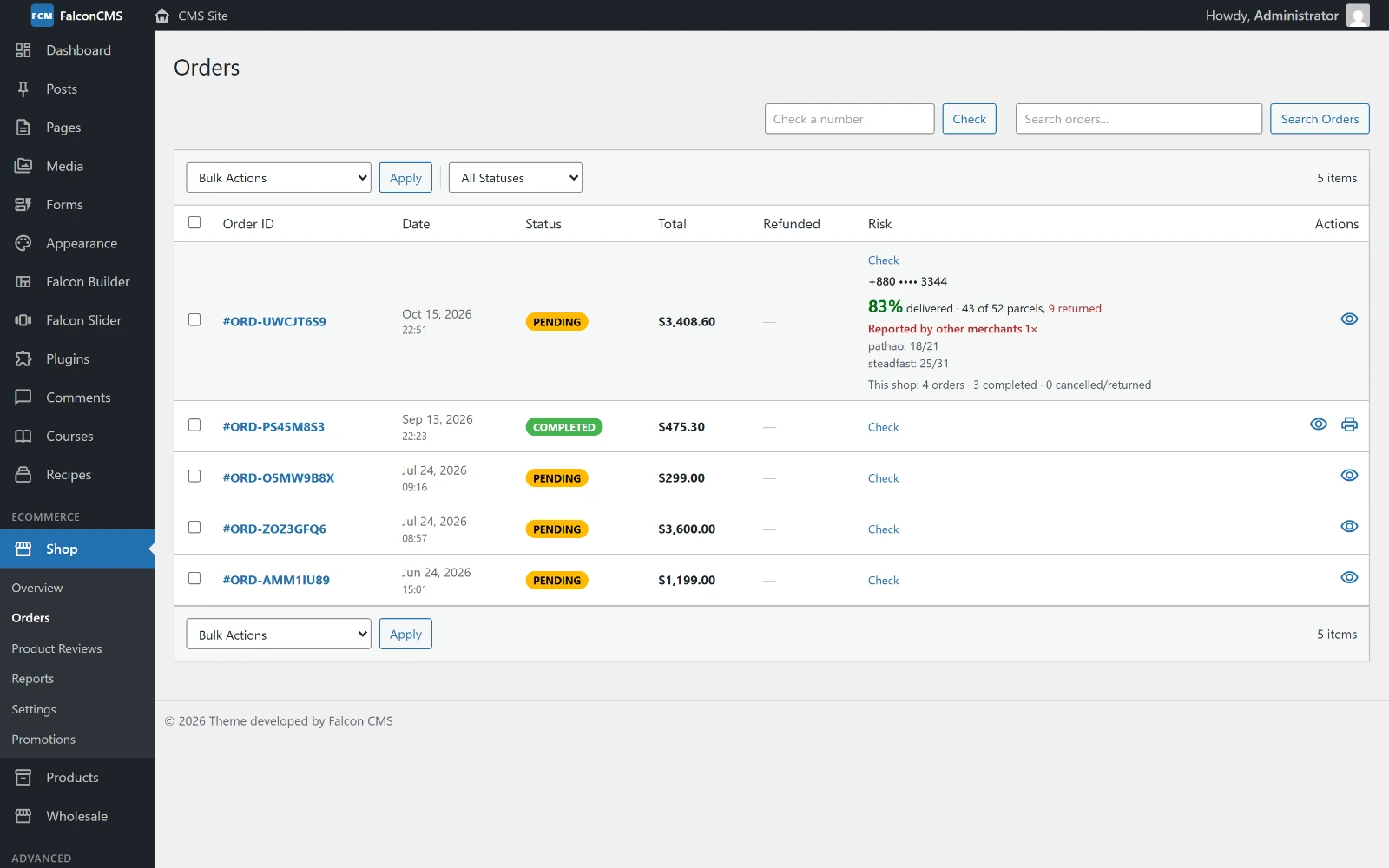
Blocklist — on any order, Block its phone number, email, network address or browser: no more orders are taken from it, whatever the payment method (browsing the shop still works). Add numbers, emails or address ranges by hand under Blocked from ordering, and unblock there or on the order. No code is ever sent to a blocked number.
Content Security Policy
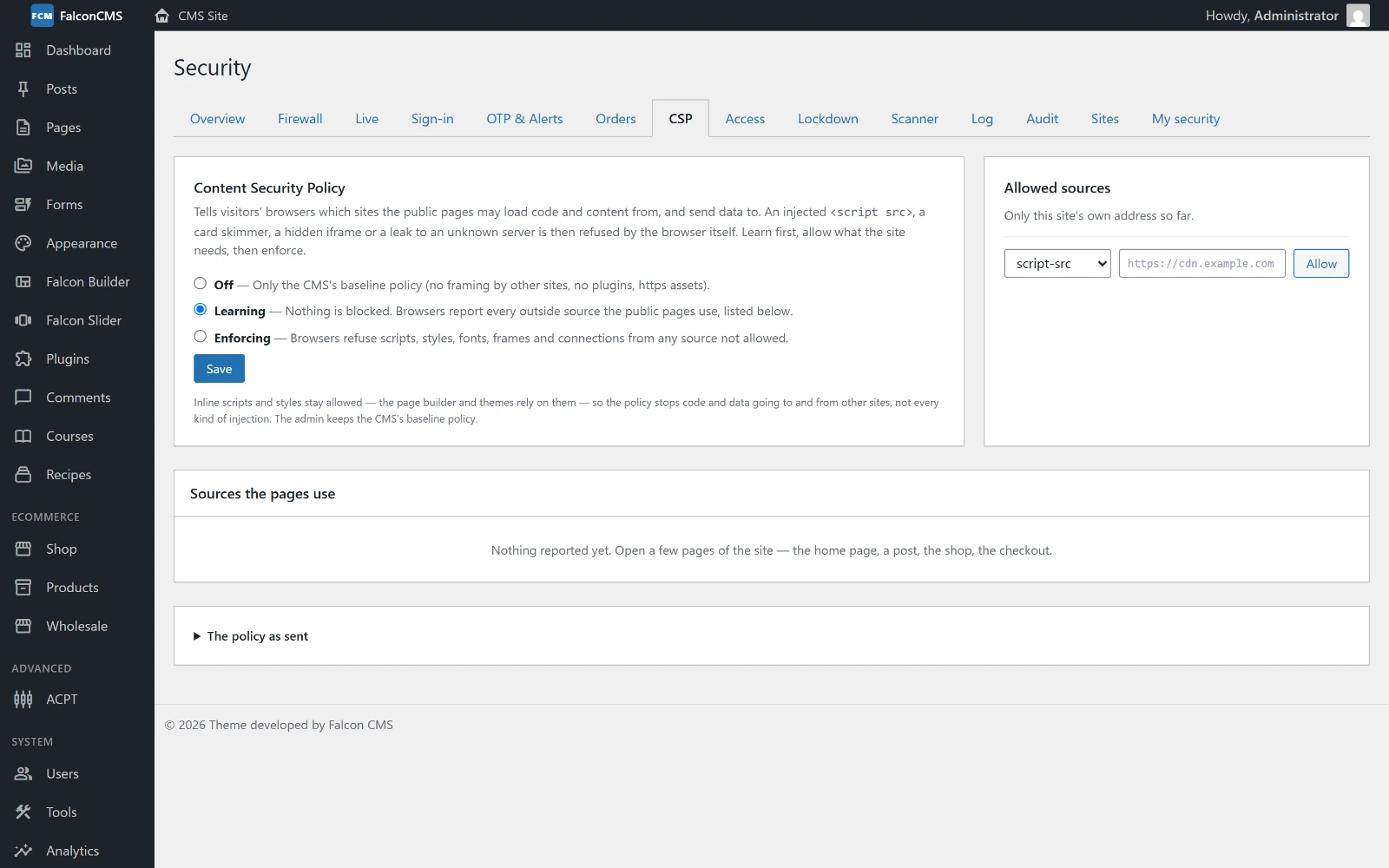
Security → CSP tells visitors' browsers which sites the public pages may load code and content from, and send data to. An injected <script src>, a card skimmer, a hidden iframe or a leak to an unknown server is then refused by the browser itself.
- Choose Learning and save. Nothing is blocked: browsers report every outside source the pages use. Open the home page, a post, the shop and the checkout, and let it run a few days.
- Under Sources the pages use, Allow what the site needs (your fonts, analytics, payment provider, video embeds) and Ignore what it does not. Allow all listed takes them all.
- Choose Enforcing. Anything new that is blocked still appears in the list.
Inline scripts and styles stay allowed — the page builder and themes are built on them — so the policy stops code and data going to and from other sites, not every kind of injection. The admin keeps the CMS's baseline policy.
Spam on comments and forms
Security → Firewall → Spam on comments and forms stops spam bots without a puzzle for people to solve. Every comment form and builder form gets a hidden field that only bots fill in and a signed time stamp; a message sent back within a few seconds of the page loading was not typed. There is also a limit on comments and form messages from one address in ten minutes, a limit on links in a comment, and the same comment posted twice is refused. A bot is told it worked, so it learns nothing; a person over a limit is told why.
Impossible travel
When an account signs in from one country and then, a short while later (three hours by default), from another, one of the two is someone else. An account with two-factor has just proved itself, so the administrators are only told. One without it is held — signed in, but unable to open anything — until it types a 6-digit code sent to its email; five wrong codes sign it out. Choose Only tell the administrators instead in Security → Sign-in. The country comes from Cloudflare, or from the CMS's own visitor lookups.
Known security holes
Once a day the site fetches the list of known security holes FalconCMS publishes — signed, so a forged list is ignored — and matches it against the installed versions of FalconCMS, Pro, every plugin and every theme. A match is shown on the dashboard and on Security → Overview, with the version that fixes it, and the administrators are told once, by email and in their chat apps.
Is this FalconCMS's own code?
For FalconCMS and Pro (their bundled plugins included), the malware scanner compares every file with the signed list of file hashes published for the installed version. A file that differs is reported as Differs from the official FalconCMS release; a PHP file the release does not have, as not part of the official release. Reinstall that version to restore them. After an update, FalconCMS's own files are compared with the new release, so they are not reported as "changed since the baseline". Security → Scanner shows whether the list was found. A development copy (a git checkout) is compared with the baseline instead.
Security score and the monthly report
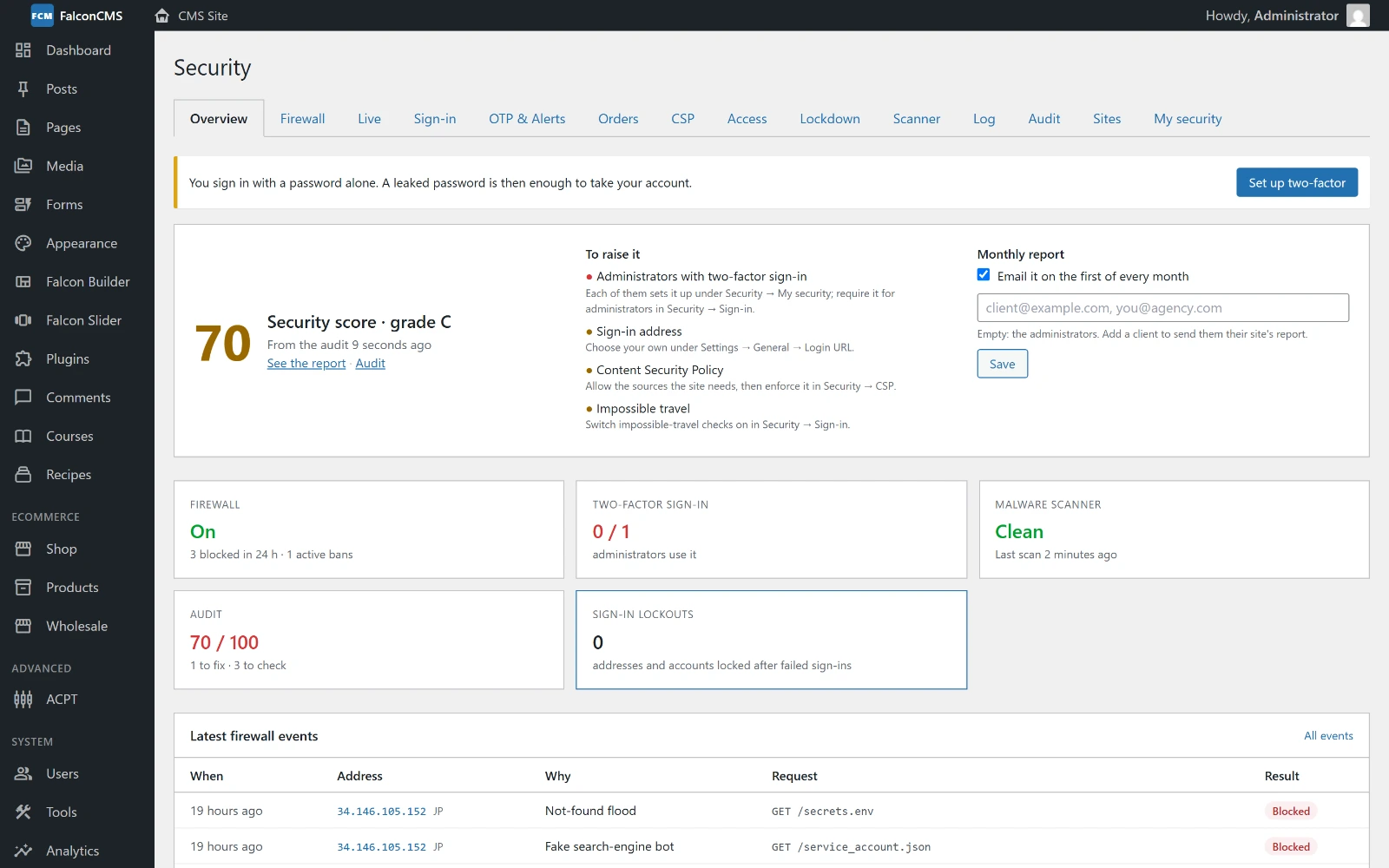
Security → Overview shows the site's security score (0–100, graded A to F) from the audit, and what would raise it. See the report opens the last 30 days on one printable page: the score, attacks stopped, sign-ins and failed ones, sign-ins from new places, impossible travel, spam, risky orders, the malware scan and known security holes. Print / save as PDF makes a copy for a client. Tick Monthly report to email it on the first of every month — to the administrators, or to the addresses you give (a client's, say).
Agency: many sites on one screen
On each client site, open Security → Sites and press Make a connection key. It reads a summary only — score, known security holes, malware findings, attacks, lockdown — and cannot change anything; Remove the key shuts it off.
On the agency's own site (Agency plan), Security → Sites → Your sites adds each client site with its address and key. Every site is checked every hour and listed side by side, and you are told by email and in your chat apps when one gets a new security hole, a serious malware finding, a falling score or a lockdown, or stops answering.
Confirm it's you
Installing, switching or removing plugins and themes, adding administrators, changing someone's email, password or roles, the licence, backups, imports, updates and the security settings ask for your password — or a two-factor code — again before they run, so a browser left signed in, or a stolen session, is not enough to take the site over. You are taken back to the form, filled in as you left it, to send it once more; a confirmation lasts 15 minutes, and signing in counts as one. Five wrong answers in a row sign that browser out. Switch it off or change the minutes in Security → Sign-in. Plugins add their own risky routes with the falcon_security_sudo_routes filter.
Shop checkout: card testing
Thieves test stolen cards with many small orders; each decline can cost a fee or a chargeback, and payment providers close shops where it goes on. Security → Firewall → Shop checkout watches the declines: after 3 declined payments from one address in an hour (or 5 for one email), that address may not place orders for 24 hours; more than 5 orders in 10 minutes from one address are refused; and if many payments are declined across the shop, the administrators are emailed and the limits tighten. Paused addresses are listed with Let through. Browsing is never affected.
Admin only from your addresses
Security → Firewall → Admin only from these addresses: list your office and home addresses, and anywhere else the admin and its sign-in page simply do not exist (a "not found" page). The public site and the shop are not affected. Your current address must be in the list, so you cannot lock yourself out by saving it. If your address changes, add FALCON_FIREWALL=off to .env or run php artisan falcon:security-allowlist off (or --add= your new address).
Fake search-engine bots
Many bots call themselves Googlebot or Bingbot to get past protections. With Block fake search-engine bots on, such a visitor is checked against the search engine's own addresses (the way Google and Bing ask sites to check); real crawlers pass, impostors are refused, and those that keep trying are banned.
Live traffic
Security → Live shows requests as they happen: address and country, what was asked for, who (a signed-in user, a browser or a bot) and what happened — including why the firewall refused it. Block and Unblock sit beside every row. Recording writes a line per visit, so you start it for an hour, 4 or 24 and it stops by itself; the lines are kept a day.
Passkeys
A passkey signs you in with your phone's fingerprint or face, Windows Hello or a security key — no password and no code. It only works on your site, so a fake login page cannot steal it.
Adding one — Security → My security → Passkeys, give it a name and press Add a passkey; your browser or phone does the rest. Passkeys need HTTPS (or localhost).
Signing in — the login page shows Sign in with a passkey once any account has one. It counts as two-factor, so no code is asked for after it; the two-factor step also offers Use a passkey instead.
Temporary access
For a developer or a helper: Security → Access, enter their name, email, a role and how long (1 to 90 days), and send the invitation. They choose their own password — and set up two-factor on their own phone, if you ask for it — so nobody shares a password or a phone. When the time is up the account is blocked and signed out of every browser; its history stays in the logs. You can Extend it, End now, or Send again if the invitation did not arrive.
Lockdown
When an account may be in the wrong hands: Security → Lockdown. Tick who keeps full access (you always do), choose how long, and confirm with your password. For everyone else the admin and the API turn read-only — nothing can be saved, deleted or installed — and you can sign them out and keep them out until it ends. The public site and the shop keep working. Only the people you named can end it early; from the server, php artisan falcon:security-lockdown off.
Security log
Security → Log keeps sign-ins (and failed ones), password and role changes, accounts created or deleted, two-factor and passkey changes, plugins and themes installed, settings changes, bans and malware removed — for 90 days by default, separately from the activity log. Filter by type, severity, user and date, and export to CSV. The administrators get an email for risky events: many deletions by one user in a short time, the activity log cleared, a plugin or theme installed, an account guessed at from several addresses, a lockdown.
Sign-in alerts and sessions
New sign-in — when an account signs in from a network it has never used, its owner gets a "was this you?" email with the address, country and browser. Choose the roles it covers, and an address that gets a copy, in Security → Sign-in. The first sign-in after the plugin is switched on is only remembered.
New administrator — the other administrators get an email when an account is made an administrator.
Log out everywhere — Security → My security lists the browsers you are signed in on (when sessions are kept in the database) and signs you out of every other one. An administrator can do it for any user from Security → Sign-in — use it when an account may be in the wrong hands. Remember-me cookies and trusted browsers stop working too.
Alerts in Telegram and WhatsApp — every alert the administrators get by email (a new administrator, an administrator signing in from a new place, wrong two-factor codes, malware found, card testing, a lockdown, a plugin installed…) can arrive in a chat too, within seconds. For Telegram, make a bot with @BotFather, paste its token in Security → OTP & Alerts → Alerts in chat apps, send the bot a message (or add it to a group), then press Find my chat and pick the chat. For WhatsApp, list the numbers; the alerts go through the WhatsApp gateway and its alert template. Send a test → Telegram alert checks the setup.
Password policy
Every form that sets a password — registration, password resets, users added or edited, the shop's account page — must meet the policy set in Security → Sign-in: a minimum length (10 by default), letters and numbers, optionally a symbol, and not a password known from a data breach. The breach check uses Have I Been Pwned without sending the password: only the first 5 characters of its hash leave the site. If the service cannot be reached, the password is allowed.
Firewall
The firewall checks every request before the site handles it, and refuses:
- addresses and ranges you block (
203.0.113.5,203.0.113.0/24,2001:db8::/32); - visitors from countries you block (known behind Cloudflare, or for visitors the site has looked up before);
- probes — requests for
/.env,/.git,/wp-login.php,/phpmyadmin, backup archives and the like, which only attackers ask for on a FalconCMS site. Three probes in ten minutes ban the address; - floods — more than 40 "not found" pages, or 10 sign-in attempts (the dashboard login, the shop's My Account sign-in, the wholesale login, passkeys and magic-link requests), a minute from one address earn a ban;
- attacks — SQL injection, cross-site scripting, path traversal, file inclusion, command injection and Log4Shell payloads in the address or a form (the admin area is not inspected). Repeat offenders are banned like probes; switch it off in Security → Firewall;
- optionally, requests naming another site in their Host header.
Bans last 24 hours by default. Everything is adjustable in Security → Firewall, which also lists the bans, what the firewall stopped, and the sign-in form's own lockouts (with Unblock).
Safety valves
- Log only records what would be blocked and blocks nothing — use it to try rules out.
- An administrator's address is never blocked once they have signed in from it.
- Locked out anyway? Add
FALCON_FIREWALL=offto the site's.env. - Behind Cloudflare, the site must trust Cloudflare's addresses (TrustProxies). Until it does, every visitor seems to come from Cloudflare, so the firewall only records, and the audit tells you how to fix it.
Malware scanner
Security → Scanner → Run the first scan checks the site's files and database for:
- PHP files in the uploads folder (or PHP hidden inside an "image"), and unexpected PHP in
public/; - code that runs hidden (decoded) instructions, passes visitor input to the shell, or matches a known web shell;
- server files rewritten to redirect visitors or run a file before every request;
- scripts, miners, invisible iframes and hidden links injected into pages or the Customizer;
- code changed or added since the baseline — the first scan records the site as it is as the clean state, so run it while you trust the site. After an update, press Accept the current files as the baseline.
It looks through the site's own code — app/, bootstrap/, config/, routes/, database/, lang/, the views, themes and plugins, the CMS itself — the files at the top of the project, the uploads and public/. Third-party packages in the rest of vendor/ are left to Composer.
Tick findings (or Select all in a tab) for a bulk action: remove (each finding gets its recommended, low-risk removal; risky ones are skipped for you to decide one by one), quarantine, mark safe, restore or undo. All findings about one file move together.
For each finding:
- Remove the code — when malicious code was injected into a file or post the site needs, only that code is cut out; the rest stays. You see exactly what will go before you confirm. If it cannot be cut out without breaking the file, the option is not offered.
- Delete file — for a file that should not exist at all (PHP in the uploads, a web shell, a file that is nothing but malicious code). Deleting a file the site had when it was clean is marked high risk: you must type its name to confirm. Files the site cannot start without (
public/index.php,bootstrap/app.php) are never deleted. - Quarantine moves a file out of reach (restore it from the Quarantined tab), It's safe hides it until the file changes.
Before anything is removed, a dialog explains what goes and that data may be lost, and asks you to confirm. A backup is kept for 30 days: Removed → Undo puts it back. The scanner never removes anything on its own. It also runs every night (with the site's scheduler) and emails new findings; both can be turned off on the screen. From the command line: php artisan falcon:security-scan (--baseline to accept the current files).
Security audit
Security → Audit → Run the audit checks the site for the setup mistakes attackers try first, and says how to fix each one: debug mode left on, the .env file, .git folder or logs reachable from the web, no HTTPS, an insecure session cookie, a wrong APP_URL, Cloudflare not trusted, an outdated FalconCMS or PHP, administrators without two-factor, a default admin@admin.com account, the default sign-in address, the firewall switched off, no bot check on the sign-in form, storage folders the site cannot write to, no password policy, malware findings or a scan long overdue, known security holes, FalconCMS files that differ from the release, no Content Security Policy, "confirm it's you", the spam guard and impossible travel switched off.
Security → Overview shows the firewall, two-factor use among administrators, the malware scanner, the audit score and the latest firewall events at a glance.