
SEO
FalconCMS takes care of the technical side of SEO on its own and gives you the tools for the rest. Each page carries a clean title, description, canonical address, structured data and breadcrumbs. Sitemaps, robots.txt and redirects are written for you. In the admin, an audit tells you what to fix and a bulk editor lets you fix it fast.
Nothing here rewrites the SEO title, description or other SEO data you have entered.
The SEO menu
Everything about search has its own menu in the sidebar, SEO, with tabs like Settings: Settings, Site Analysis, SEO Audit, Bulk SEO, Search Console (with the Pro plugin) and Redirects. The screens used to sit under Settings; their old addresses still lead to them.
Each screen is granted on its own in Users → Roles → SEO, so an editor can be given Site Analysis and Redirects without the rest of the settings. A role that could open an SEO screen under Settings before keeps it after the update. The SEO tabs inside the post editor (Analysis, Keywords, Internal Linking) need no SEO permission: anyone who can write posts or pages uses them.
The Falcon SEO plugin
The SEO and speed tools come in Falcon SEO, a free plugin that ships with FalconCMS and is on by default (Plugins). It holds page analysis, the SEO Audit, Bulk SEO, keyword research, internal link suggestions, structured data, hreflang, IndexNow, AI crawler rules, the 404 log, "Hide this site from search engines", AVIF images, instant page loads, Web Vitals and the Cloudflare purge.
Switching it off removes those tools and what they add to pages. The CMS itself keeps doing the basics: each page's title, description, canonical address and Open Graph tags, the sitemap, robots.txt and redirects. Nothing you have saved is deleted, so switching it on again brings everything back as it was.
SEO → Settings
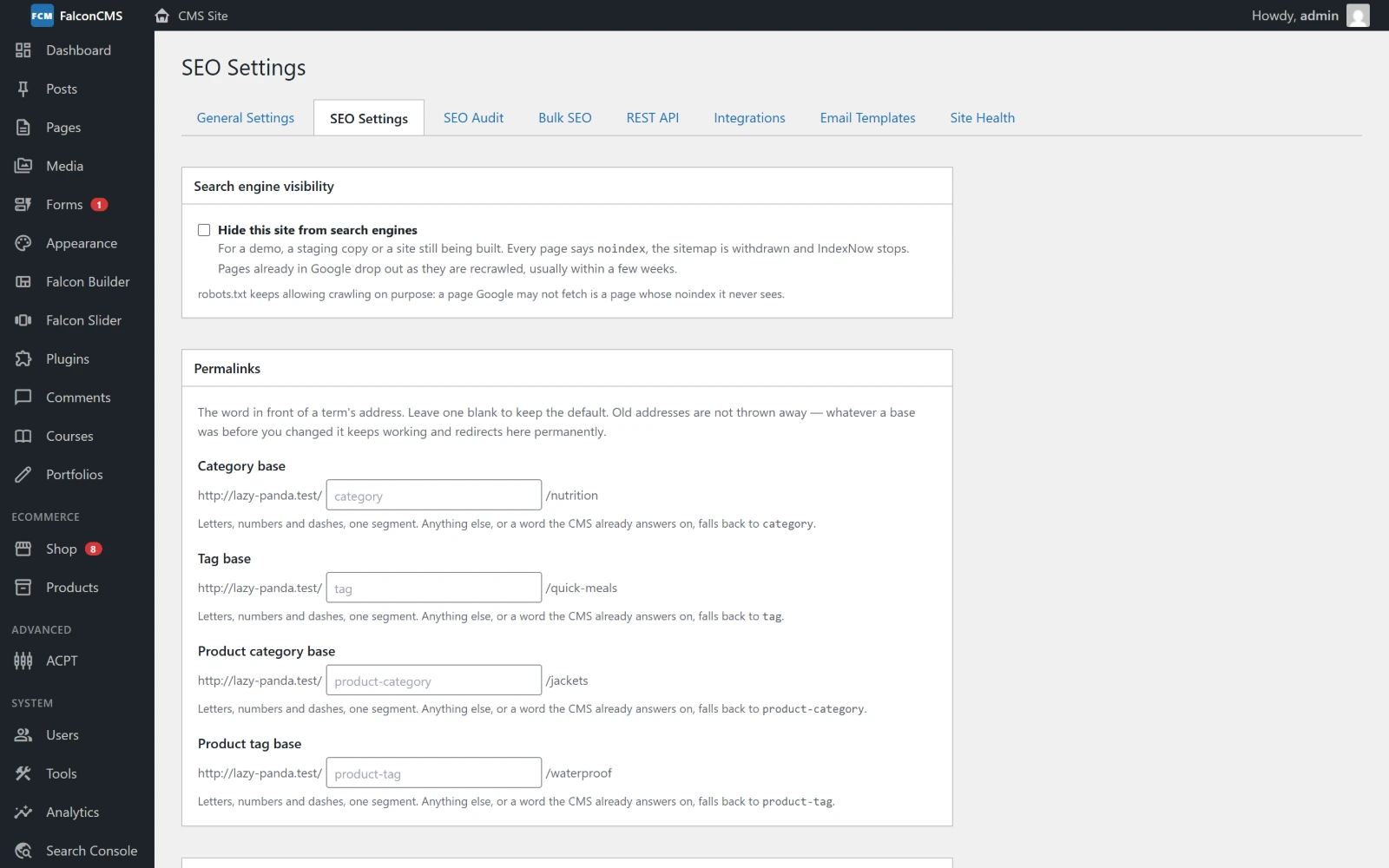
Site-wide SEO settings: search engine visibility, permalinks, robots.txt, your organization, AI crawlers, IndexNow, the 404 log, Discover and keyword research.
| Setting | What it does |
|---|---|
| Hide this site from search engines | For a demo, a staging copy or an unfinished site. Every page says noindex (a robots meta tag, plus an X-Robots-Tag header on everything else), the sitemap is withdrawn and IndexNow stops. robots.txt keeps allowing crawling on purpose, because Google has to fetch a page to see its noindex. While it is on, the SEO Audit reports it as an error, so it is not forgotten at launch. |
| Permalinks | The first part of category, tag and product-category addresses (/category/…). When you change one, the old addresses redirect to the new ones permanently. |
| Robots.txt | The file served at /robots.txt. |
| Your business or organization | Name, logo, social profiles, phone, email and, for a local business, the address and price range. Feeds the Organization or LocalBusiness structured data. |
| AI crawlers | Two separate choices: block AI training crawlers (GPTBot, Google-Extended, ClaudeBot, Applebot-Extended, CCBot, meta-externalagent), and block AI search crawlers (OAI-SearchBot, Claude-SearchBot, PerplexityBot, meta-webindexer). Both are written into robots.txt. Google and Bing search are never affected. A crawler you name yourself in robots.txt keeps your rule. |
| Instant indexing (IndexNow) | Bing, Yandex, Seznam and others hear about a page the moment it is published, changed or deleted. Off by default. Never sent from a local address (localhost, *.test). Google does not use IndexNow; it reads the sitemap. |
| Broken links (404 log) | Records addresses that visitors hit and that do not exist. On by default. See Redirects and the 404 log. |
| Google Discover & large previews | Lets Google show a large image in Discover and search results (max-image-preview:large). On by default. The editor warns when a featured image is narrower than the 1200px Discover needs. |
| Keyword research | Free sources for search demand in the editor. See Search demand. |
What every page carries
You don't set any of this up:
Title and description exactly as typed. "Pricing — Free, Pro & Agency" stays as written, without
&and without the site name added twice.A canonical address without sort, filter or tracking parameters (
?orderby=,?utm_source=). It keeps?page=2, because Google asks each page of a series to name itself.Breadcrumbs: one trail (Home › Blog › Category › Post) used by the theme's title bar, the breadcrumb component and the builder's Breadcrumb element. The same trail goes into the structured data as a
BreadcrumbList, so what Google reads matches what visitors see.Structured data: one linked JSON-LD graph per page:
- the organization, the site and the page;
- a post's real author as a
Person, with a profile page on the author archive; - a
VideoObjectfor each YouTube or Vimeo video in the post; - a
Producton product pages.
Plugins add their own through
falcon_structured_data.hreflang links between the translations of a page on a multilingual site, with
x-default.noindexon pages nobody should land on from a search:- the site's search results;
- an archive with no posts in it;
- the shop's cart, checkout, account and wishlist.
The same pages are left out of the sitemap.
The author box
Customizer → Single Blog → Show Author Box prints the author's name, photo and bio under a post, linked to their author page. It shows only for authors who have a bio.
Sitemap
/sitemap.xml lists every published, indexable page at the address the site links to, such as /post/my-post for a post. A page set to noindex is left out, and so is the home page's second address. Each entry lists the page's images for Google Images: the featured image first, then the images in the content, up to ten.
A site with more than 1,000 addresses gets a sitemap index instead, pointing to /sitemap-1.xml, /sitemap-2.xml and so on, with 1,000 addresses each. The address you submit to Search Console stays /sitemap.xml.
A post opened at its bare slug (/my-post) redirects permanently to its real address (/post/my-post), so search engines see one copy of it, not two.
SEO Audit
SEO → SEO Audit checks every published page and post and gives the site a score. Each kind of issue is listed with the pages that have it, most important first. View opens the page, Fix opens its editor.
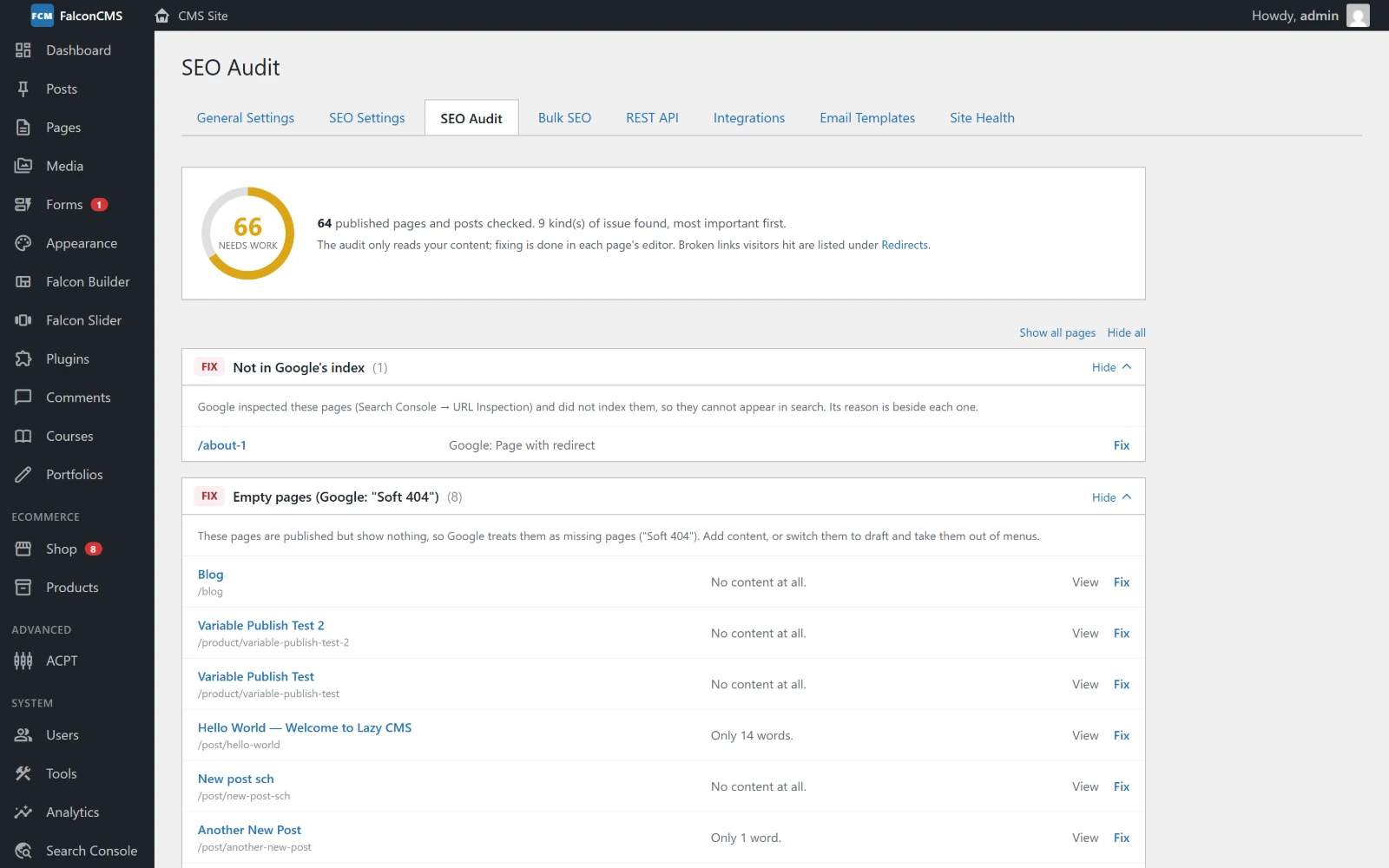
The audit: a score, then every issue with the pages it affects. "Fix" issues open on their own; the rest open with "Show N pages".
| Check | Severity |
|---|---|
| The whole site is hidden from search engines | Fix |
| Empty pages: published pages with no content, which Google treats as missing ("Soft 404") | Fix |
| Not in Google's index: from the Search Console plugin | Fix |
| Missing meta descriptions | Important |
| Duplicate titles | Important |
| Pages nothing links to: no link from other content or a menu | Important |
| Images without alt text | Important |
| Duplicate meta descriptions, titles likely to be cut off, short posts, posts without a featured image, pages hidden from search (noindex) | Tip |
The audit only reads. It never changes a page. Pages drawn by templates (the home page, the blog page, the shop's pages) are not reported as empty. Plugins add their own checks through falcon_seo_audit_checks.
The Import Google Keyword Planner data box at the bottom of this screen feeds Search demand.
Site Analysis
SEO → Site Analysis runs the editor's page check-up (see Analysis below) on every page of the site and keeps each page's score. Pages are checked in the background, ten an hour, as visitors get them and with every link checked. A page is checked again after you change it and once a week. Check now goes through the pages that are due right away, a few at a time with a progress line. Check all again starts over.
The screen shows the average score and how many pages are good, need some work or need work. Under Problems across the site, each problem lists the pages that have it, with the images or links concerned: every broken link on the site, every image without alt text, every page with two H1s. Below that, every page with its score, lowest first, and Check again for one page.
Each page's score also shows beside it in the Posts and Pages lists, and running the editor's Analysis on the published page updates it.
The background check needs the site's scheduler (php artisan schedule:run every minute, as for the rest of FalconCMS) and a correct APP_URL, since the pages are fetched at their real address.
Pro tools
With FalconCMS Pro, four more tools come with Falcon SEO. Set them up under SEO → Settings → AI writing, keyword data & weekly email. Each uses your own account with the service, and the keys are stored encrypted.
- AI writing (Claude). ✨ Suggest with AI beside the SEO title and meta description gives three options written for the page and its focus keyword, each with the reason. Click one to use it. The same button appears in Analysis next to a title or description that needs work. You need an Anthropic API key and can choose the model: Opus 5.5 is the best, Sonnet 5.5 and Haiku 5.5 are faster and cheaper. Only the page being worked on is sent.
- Keyword data (DataForSEO). In Analysis, Google's monthly searches, cost per click, ad competition and ranking difficulty (0 to 100) for the focus keyword, in each chosen country (the first ten). DataForSEO bills per request, so each keyword and country is asked once a month at most.
- One-click fixes. In Site Analysis, the problems that can be fixed get Fix all buttons: fill missing meta descriptions from the page text or write them with AI, rewrite SEO titles with AI, give images alt text from their file names or with AI, and remove broken links while keeping their words. A revision is kept before any page's content changes. A description an author wrote is only replaced when AI is asked to.
- Weekly SEO email. Every Monday morning: the average score, pages whose score dropped by 10 or more since their last check, every broken link, the most common problems and the pages to fix first. Send a test now shows what it looks like.
Bulk SEO
SEO → Bulk SEO shows the SEO title, meta description, focus keyword and noindex of every page, post and product on one screen. It is the fastest way to fix what the audit finds.
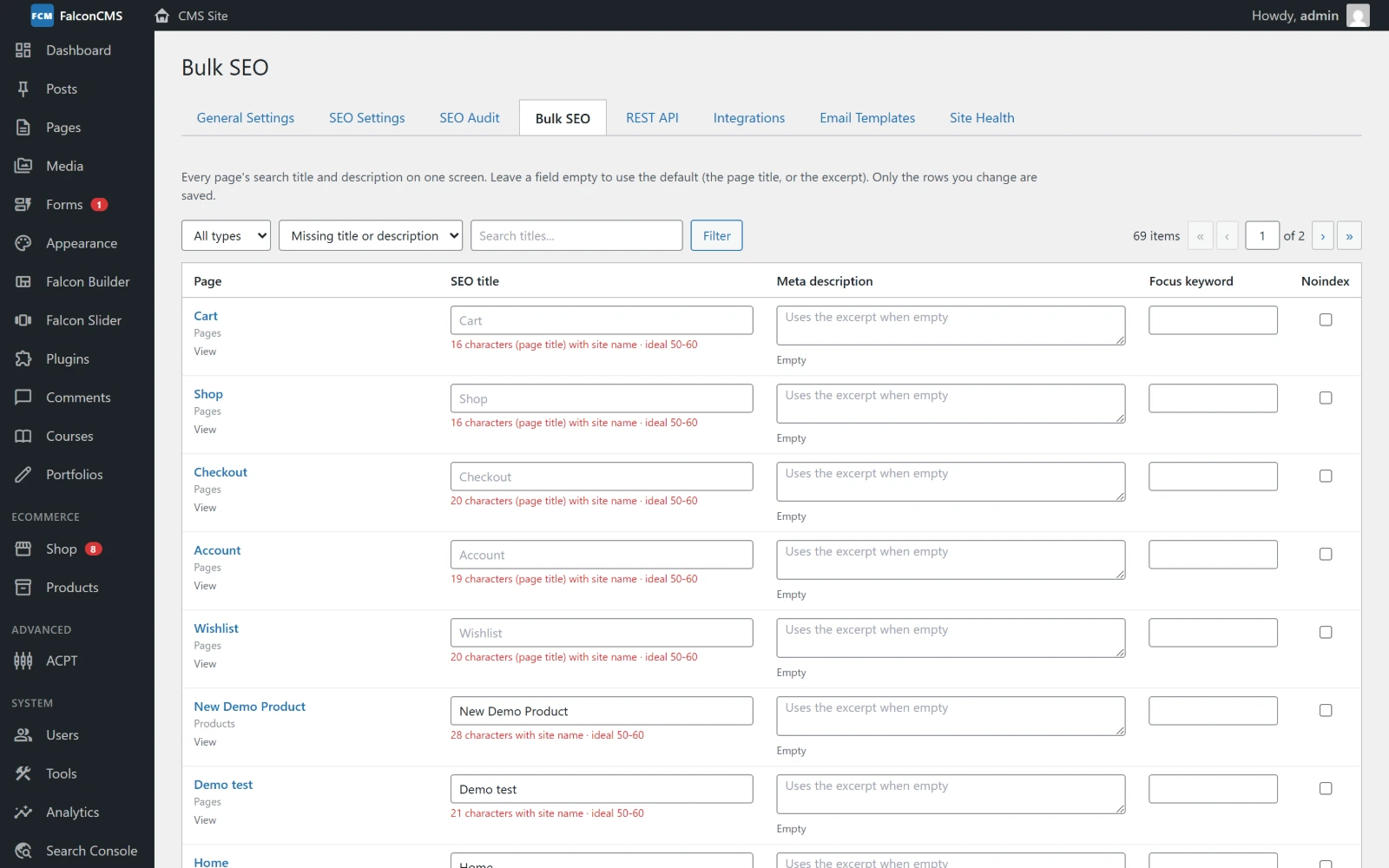
Filter to what is missing, type, and save only the rows you changed.
- Filter by type, by title, or to what is missing (title, description or focus keyword).
- Character counts turn green in the ideal range. The title count includes the " - Site name" that Google shows after it.
- A hint under the focus keyword says whether the keyword is in the title and the description.
- Only the rows you changed are saved. A changed row turns yellow, and leaving with unsaved changes asks first.
- An empty field means "use the default": the page title, or the excerpt. It is never saved as an empty string.
In the editor
The SEO Settings box under the editor has six tabs: General (focus keyword, title, description, search preview, analysis), Social, Analysis, Keywords, Internal Linking and Advanced (canonical, noindex, nofollow). Analysis, Keywords and Internal Linking come with the Falcon SEO plugin.
Analysis
A full check-up of the page with a score out of 100. Analyse page reads the published page as a visitor gets it, theme included, so a second H1 in the theme's header counts too. A page that is not published yet, or What is in the editor, is read from the editor, unsaved changes included.
- Focus keyword: whether it is in the SEO title, the H1, the first 100 words, the meta description, the address, a subheading and an image's alt text, and how often it is used.
- Content & headings: the number of H1s, skipped heading levels (H2 → H4), how many H2/H3 there are, the word count, very long paragraphs and long sentences.
- Title, description & search appearance: their lengths, noindex, canonical, the social share image, structured data, the page language and the mobile viewport.
- Images: missing alt text, images without a width and height (they make the page jump), and images over 300 KB.
- Links: internal and external links, links without text, and broken links. Each link is checked once a day at most, up to 40 per page.
Each finding says why it matters and lists the images or links concerned. Errors count fully against the score and warnings count half.
Searchers in lists every country, with a search box, and Select all, Popular and Clear buttons. Tick as many as you like, all of them included. The first one ticked is the main market, and your choice is remembered for next time.
Below the score, the Keyword box shows how often the focus keyword is searched in the main market (from Keyword Planner or Bing, see Search demand below). With the Search Console plugin connected, it first shows Google's own figures for the exact keyword in each chosen country: how often the site showed for it, the clicks and the average position over the last 90 days. With more than one country ticked and a Bing key, it also shows a bar for each country, so you can see where people search for it most. The countries are asked 20 at a time and the table fills in as they answer; the 25 with the most searches are shown, the rest and those with none are folded below. Each answer is kept for a week, so checking the same keyword again is instant. It lists keywords worth considering too, each with the reason: searched more, already shown by Google for this page, or what the page is most about. Use as focus keyword switches to one.
Keywords
The Keywords tab suggests what the page could rank for and shows where each phrase is still missing: the title, the headings, the first 100 words, the URL and the description. Use as focus keyword fills the General tab's field.
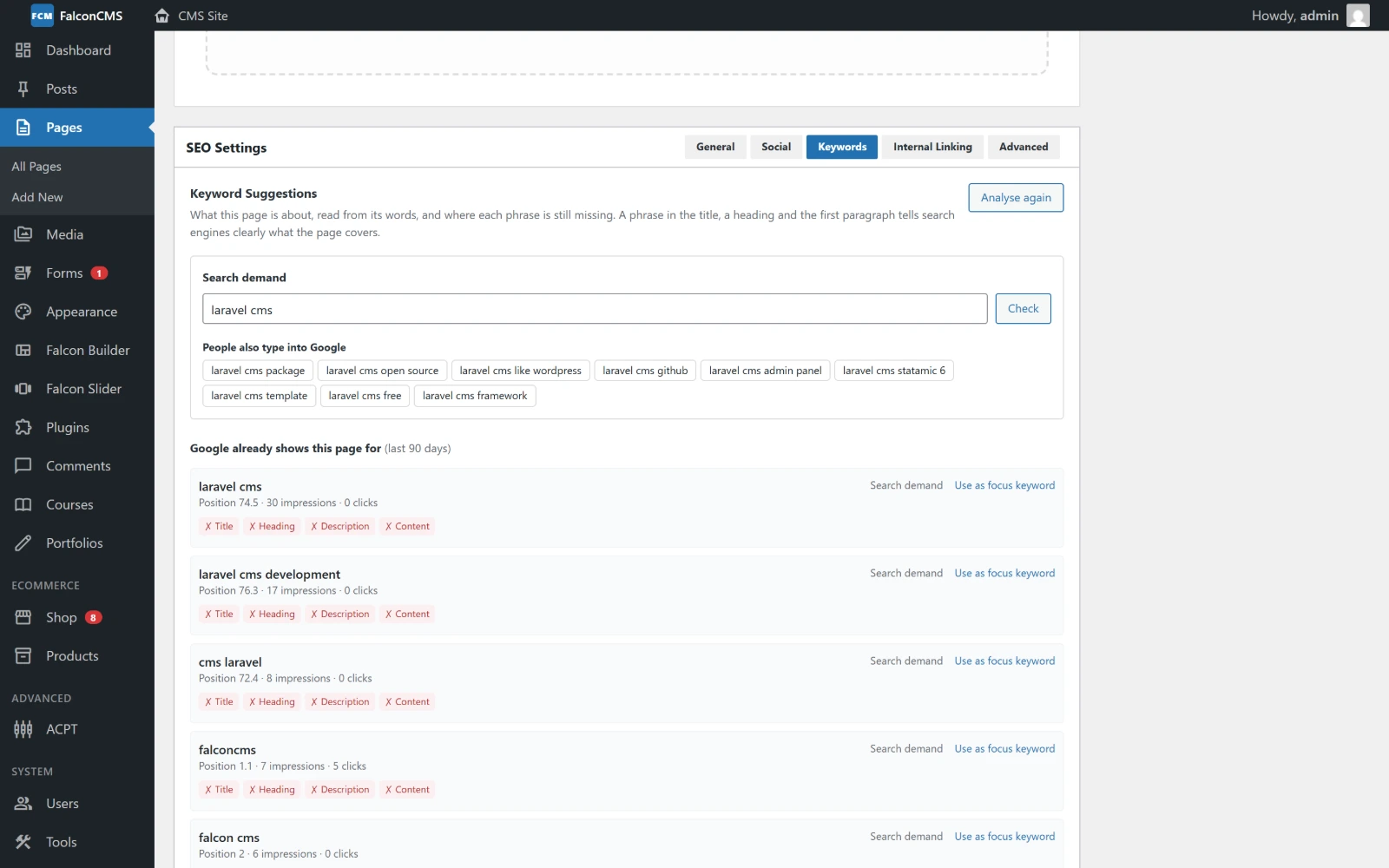
Search demand for "laravel cms", Google's own suggestions, and the searches Google already shows this page for (with Search Console).
- From the page's own words: the phrases the page uses most and the rest of your site uses least. It works in English and Bangla, keeps hyphenated words whole and counts plurals together. Builder placeholder text is ignored. The bar shows how strongly a phrase sets this page apart, not how many people search for it.
- Google already shows this page for: with the Search Console plugin, the searches the page appeared for in the last 90 days, with their position. A search at position 4–20 whose words are not in the title is marked Close to the top, because that is the easiest win there is.
Search demand
How many people search for a keyword, from free sources only. Set them up under SEO → Settings → Keyword research:
- Google Keyword Planner: free with a Google Ads account (no ad needs to run). Download the keyword ideas as CSV and import the file on the SEO Audit tab. Ranges such as "1K – 10K" are kept. Any keyword tool's CSV with a "Keyword" column and a volume column works too.
- Bing Webmaster Tools: paste the free API key (Settings → API access in Bing Webmaster Tools). It is stored encrypted.
- Google's search suggestions: what people type into Google around a keyword. This is optional and off by default, because it is not an official API. It is only asked when you press Check.
Answers from outside services are kept for a week, so the same question never costs twice.
Internal Linking
Pages to link to from this one, and pages that mention this one's focus keyword without linking to it, each with the reason.
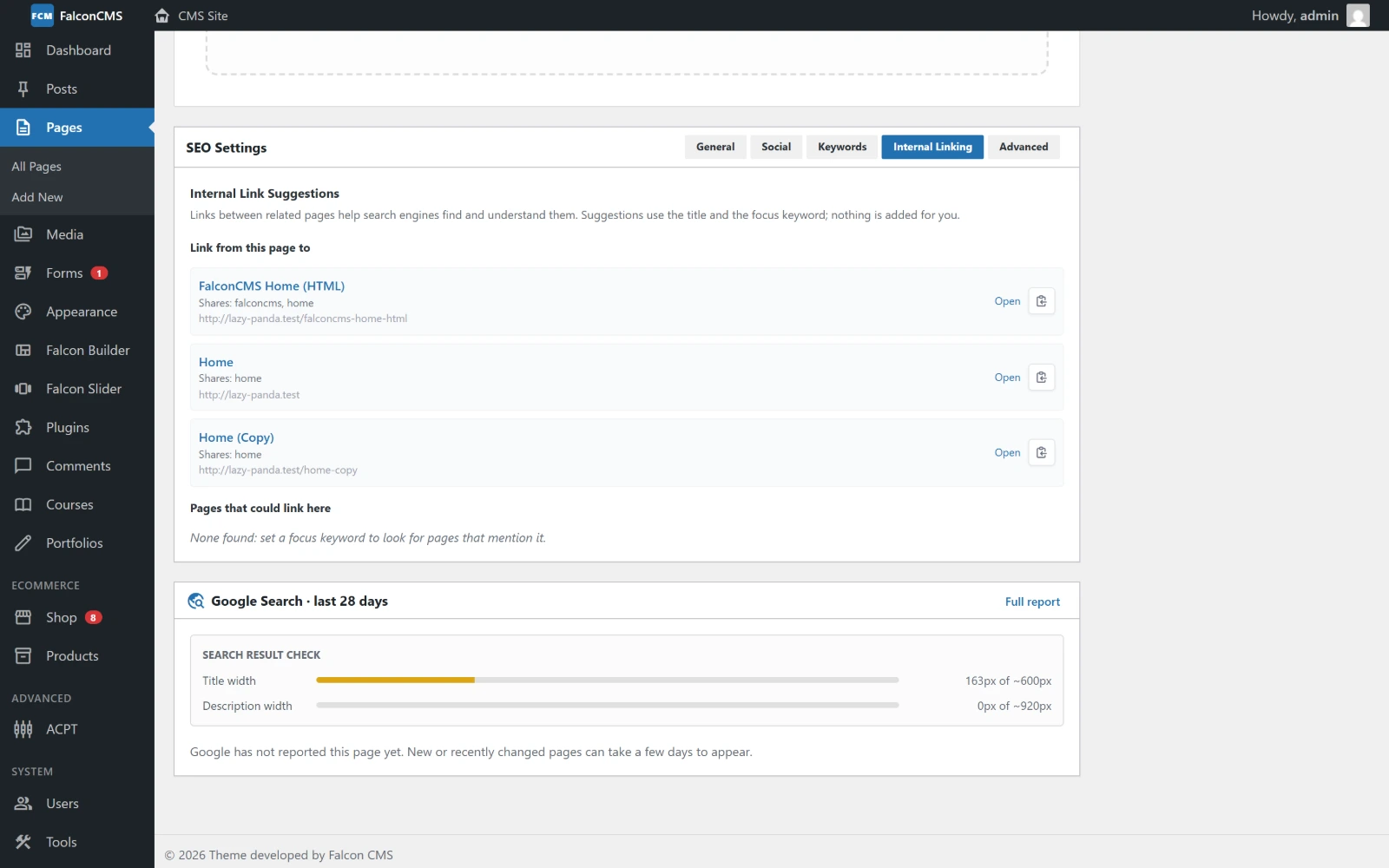
Both directions, with the reason for each suggestion.
Redirects and the 404 log
SEO → Redirects holds your redirects, and below them the addresses visitors asked for that do not exist. Each one shows how often it was hit and where the visitor came from. One click turns a broken address into a redirect.
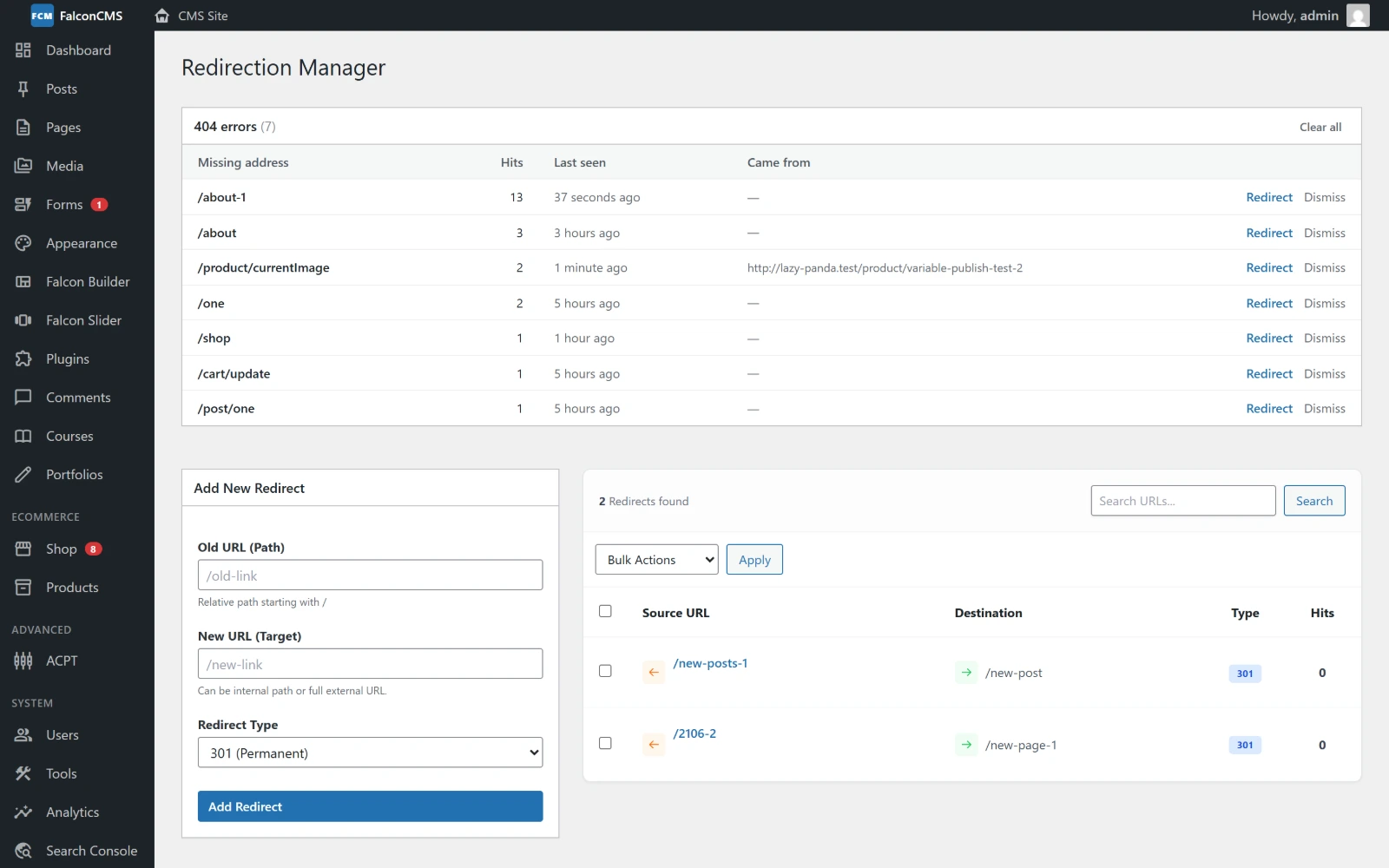
Broken addresses visitors actually hit, ready to redirect.
When you change a page's slug, a redirect from the old address is added for you.
For developers
| Hook | Use |
|---|---|
falcon_seo_noindex (filter) | Return true to keep a page out of search, the sitemap and the audit. |
falcon_breadcrumbs (filter) | Change the breadcrumb trail. |
falcon_structured_data (filter) | Add nodes to the page's JSON-LD graph. |
falcon_seo_audit_checks (filter) | Add a check to the SEO Audit. |
falcon_link_suggestions, falcon_keyword_suggestions (filters) | Add to the editor's suggestions. |
falcon_seo_metabox_after (action) | Print a panel under the editor's SEO box. |
See the Hooks API for their arguments.