
Performance
Every speed setting lives under Customizer → Performance. Each one is off by default, so a site changes only when you switch something on. Most of them work on the finished page, which means they apply to any theme and to pages built with the builder alike.
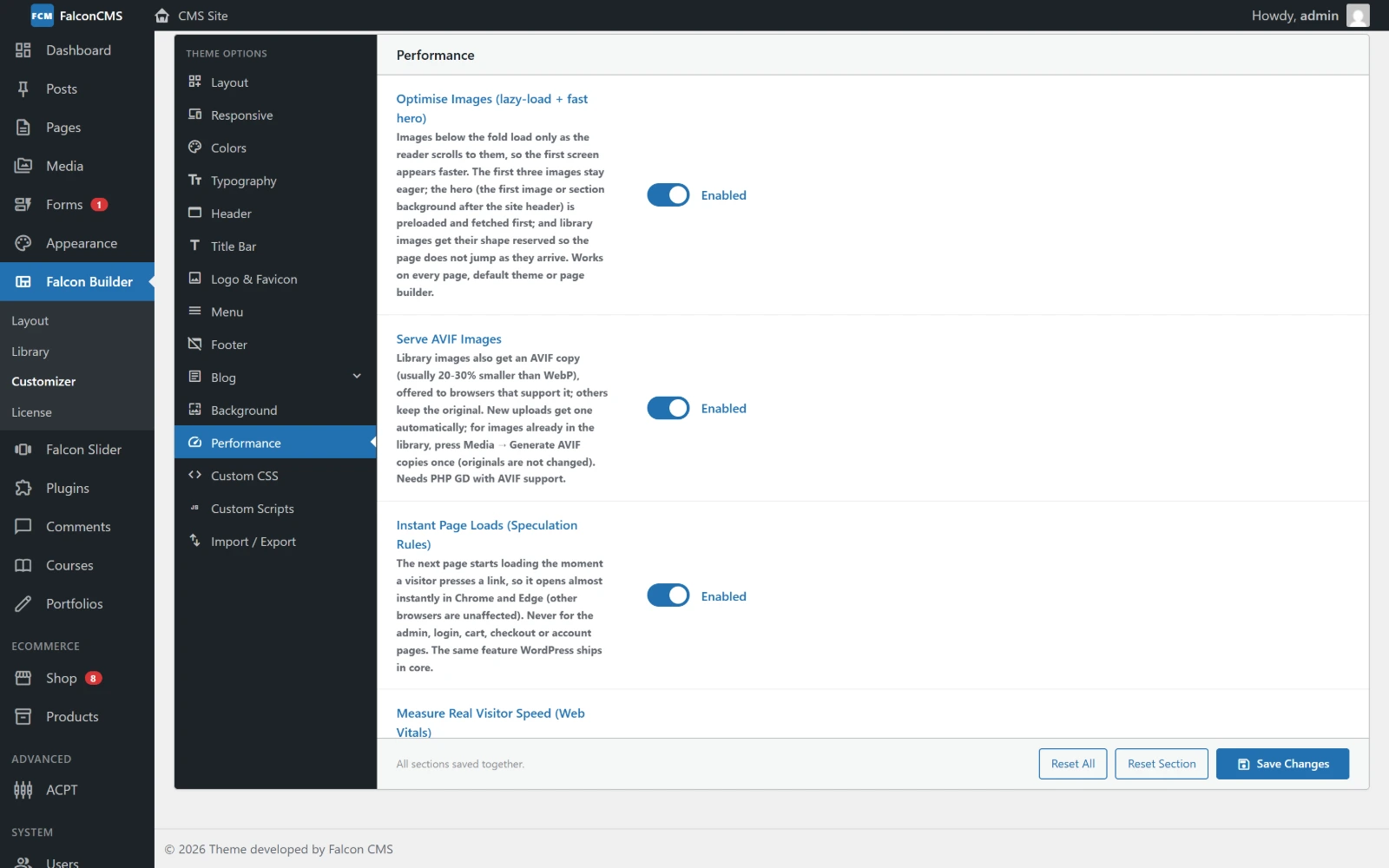
Each speed option with what it does. An option this server cannot support is locked off, with the reason.
Recommended setup
For a site on the default Falcon theme, switch on:
- Static Caching
- Compiled CSS and then Critical CSS
- Optimise Images
- Inline Only the Icons in Use
- Host Google Fonts Locally
- Defer JavaScript, Minify HTML and Minify CSS
- Instant Page Loads
- Serve AVIF Images, if your server supports it
- Measure Real Visitor Speed, to see the effect on real visitors
Then check the site in a private window, and run PageSpeed Insights on the mobile tab, which is the stricter test.
The settings
| Setting | What it does | Themes |
|---|---|---|
| Static Caching | Saves each finished page and serves the copy to the next visitor. Pages that hold something personal (a cart, an account) are never cached. | Any |
| Optimise Images | Images further down the page load only when the reader scrolls to them. The first three images stay eager. The hero (the first image or section background after the site header) is preloaded and fetched first, and library images get their space reserved, so the page does not jump while they load. | Any |
| Serve AVIF Images | Library images also get an AVIF copy, usually 20–30% smaller than WebP, offered to browsers that support it; others keep the original. Needs PHP's GD with AVIF support: on a server without it, the switch is locked off and says why. See Media. | Any |
| Instant Page Loads | The next page starts loading the moment a visitor presses a link, so it opens almost at once in Chrome and Edge (other browsers are unaffected). Never for the admin, login, cart, checkout or account pages, and only when the click is already happening. WordPress ships the same feature in core. | Any |
| Measure Real Visitor Speed | A small script measures how fast each page loads and responds for your real visitors and shows it under Analytics → Web Vitals. It reports as the visitor leaves the page, so it never slows the page down, and stores no personal data. | Any |
| Defer JavaScript | Scripts load without stopping the page from drawing. Scripts that have to run first (Tailwind, Alpine, the security check) are left alone. | Any |
| Minify HTML / Minify CSS | Removes the blank space between tags and inside style blocks. | Any |
| Load Assets Only When Needed | Font Awesome, Alpine.js and SweetAlert load only on pages that use them. | Falcon theme |
| Compiled CSS | One pre-built stylesheet (~65 KB) instead of building styles in the browser with the 400 KB Tailwind script. | Falcon theme |
| Critical CSS | With Compiled CSS on, each page carries, inline, only the styles it uses (typically 10–20 KB). The full stylesheet loads without holding up the first paint, so styles added later by JavaScript still apply. | Falcon theme |
| Inline Only the Icons in Use | Icon libraries (Font Awesome, Bootstrap Icons, Remix, Boxicons, Lucide) are 70–140 KB stylesheets each. With this on, the page carries only the rules for the icons it shows, usually a kilobyte or two, and drops the libraries it doesn't use. | Any |
| Host Google Fonts Locally | Copies the Google Fonts the site uses to public/falcon-fonts and serves them from your own server, with their rules inline. Visitors' browsers never contact Google, which also helps with the GDPR. | Any |
| WebP Conversion, Image Quality, Max Image Width | Applied to images when they're uploaded. | Any |
Inline Only the Icons in Use
The whole page is scanned for icon names, including Alpine bindings and inline scripts, so an icon a widget swaps in on click is kept too. The one case it can't see is a theme that adds icons from its own JavaScript files. If icons go missing on such a theme, switch the option off, or add this to the theme's functions.php to keep linking the full stylesheets:
add_falcon_filter('falcon_icon_inline_css', fn () => false);Host Google Fonts Locally
The copy is made in the background, after a page's first visit, so no visitor waits for it. Until the copy exists, and whenever a download fails, the page keeps loading the fonts from Google as before; a failed download is retried an hour later. Pages served in the meantime are not kept in the page cache. When you change fonts in the Customizer, the new ones are copied the same way.
Compiled CSS
The compiled file holds the Tailwind classes written in the theme's templates. Content can bring others: imported HTML (<h2 class="text-2xl md:text-3xl">), or classes typed into a builder element's CSS Class field. On every page, FalconCMS looks for such classes and:
- writes the common ones on the server and adds them to the page as a small
<style>. This covers arbitrary colours and sizes (hover:text-[#0091ea],p-[12px]), the text-size and spacing scales, alignment, weight and rounding, each with thesm:–2xl:breakpoints and the hover, focus and active states; - loads the in-browser Tailwind build on that page only if something is still left that Tailwind would make, such as
dark:variants or palette colours liketext-red-500.
Pages that need neither keep the compiled file alone. So a page looks the same with Compiled CSS on or off.
Critical CSS
The stylesheet still downloads in full, after the page has shown, so nothing that relies on it is lost. A browser with JavaScript turned off gets the normal stylesheet link.
Images
- Images from the media library carry their width and height, so the page keeps their space while they load and the text below doesn't jump.
- If an image element has no alt text of its own, the alt text from the media library is used. Give your logo an alt text in the library: a linked logo without one is an unnamed link to screen readers and to PageSpeed.
- Upload images close to the size they're shown at. A logo shown at 180 px doesn't need a 1,600 px file.
Cloudflare
If your site runs through Cloudflare, Settings → Integrations → Cloudflare cache empties Cloudflare's cache whenever the site changes: a post, a page, the Customizer, a menu, the builder. Visitors then never get an old copy.
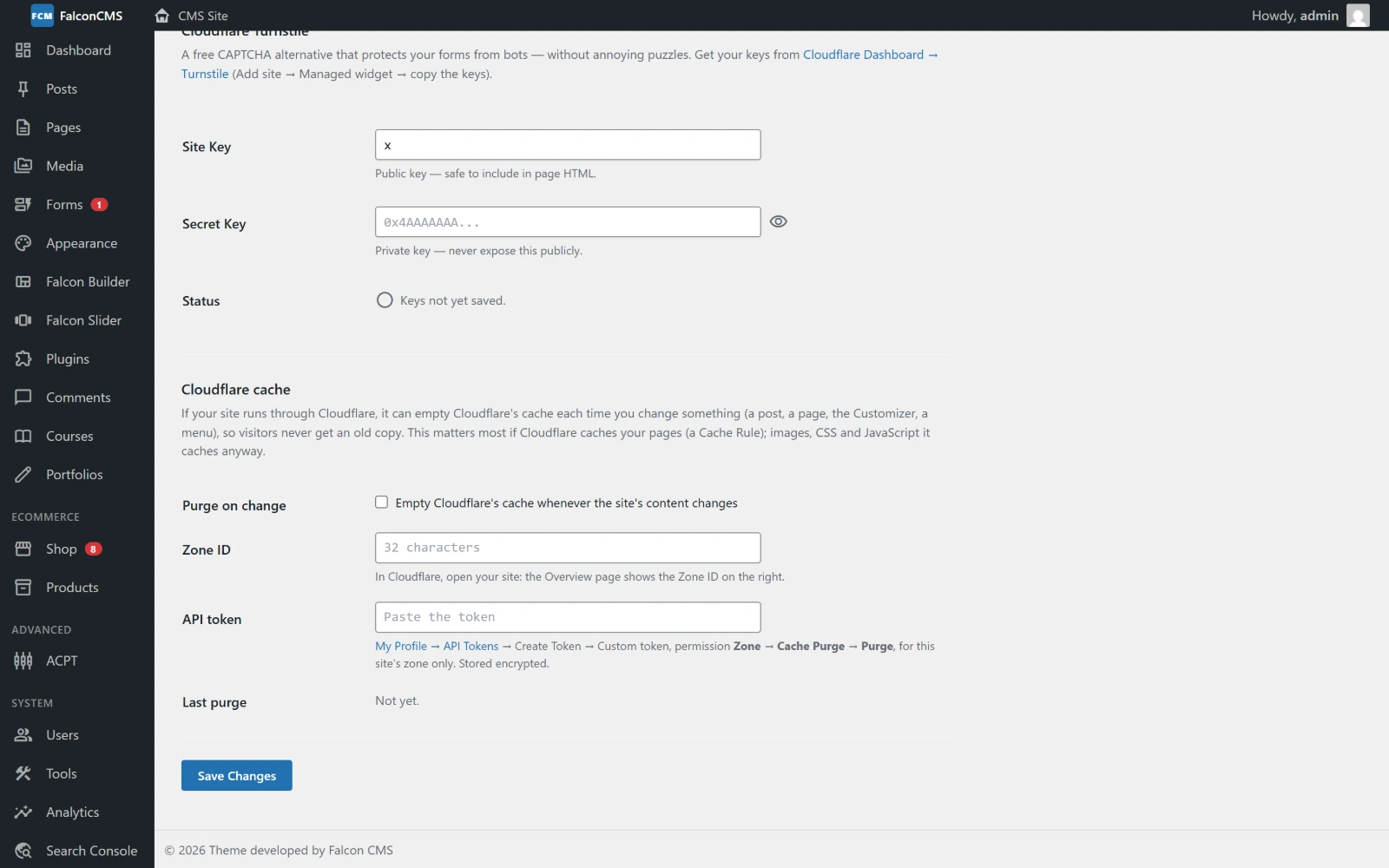
Purge on change, the Zone ID, an API token, and the result of the last purge.
- In Cloudflare, open the site: the Overview page shows the Zone ID.
- Under My Profile → API Tokens, create a custom token with the permission Zone → Cache Purge → Purge, for this site's zone only.
- Paste both, tick Purge on change and save. Purge everything now tests the token. If it is refused, the screen says why.
The purge runs once per save, after the page has been sent, so editing never waits on Cloudflare and a bulk edit makes one call, not a hundred. It matters most if Cloudflare caches your pages (a Cache Rule); images, CSS and JavaScript it caches anyway.
Things outside the CMS
- Compression: the server (or a CDN such as Cloudflare) should gzip or brotli the HTML. Without compression a page can be several times larger on the wire.
- Cache lifetimes for static files: configure them in the web server or CDN, so returning visitors don't download unchanged CSS, fonts and images again.
- PHP limits and OPcache: see Settings → Site Health, which checks these for you.